TABLE OF CONTENTS
- EQUIPMENT INVENTORY
- MOUNTING FLASH ON VEHICLE
- POWERING FLASH
- SCANNING YOUR CROP WITH FLASH
- UPLOADING SCAN DATA VIA DIASPORA
- HARDWARE APPENDIX - INSTALLING VEHICLE MOUNTS/WIRING
WELCOME TO FLASH
Flash is a high-resolution stereo camera system designed for ground-level imaging in agricultural environments. Mounted on moving vehicles, it captures detailed images of the entire plant: enabling precise, season-long assessments of plant health and performance.
Equipped with active LEDs, Flash operates effectively in variable lighting conditions. The active lighting allows the use of a smaller aperture, resulting in a depth of field where multiple features remain crisp with minimized motion blur. Image and GPS data synchronize with each rapid LED flash, ensuring consistent imagery for reliable geospatial analysis.
This guide will walk through the process of
Setting up the FLASH camera system to a vehicle
Controlling a field scan using the BLOOMGO app
Transferring/processing data via the DIASPORA/SMASHER units
EQUIPMENT INVENTORY
Each Flash camera and accompanying field kit arrives in a customized Pelican protective case with the following accessories:
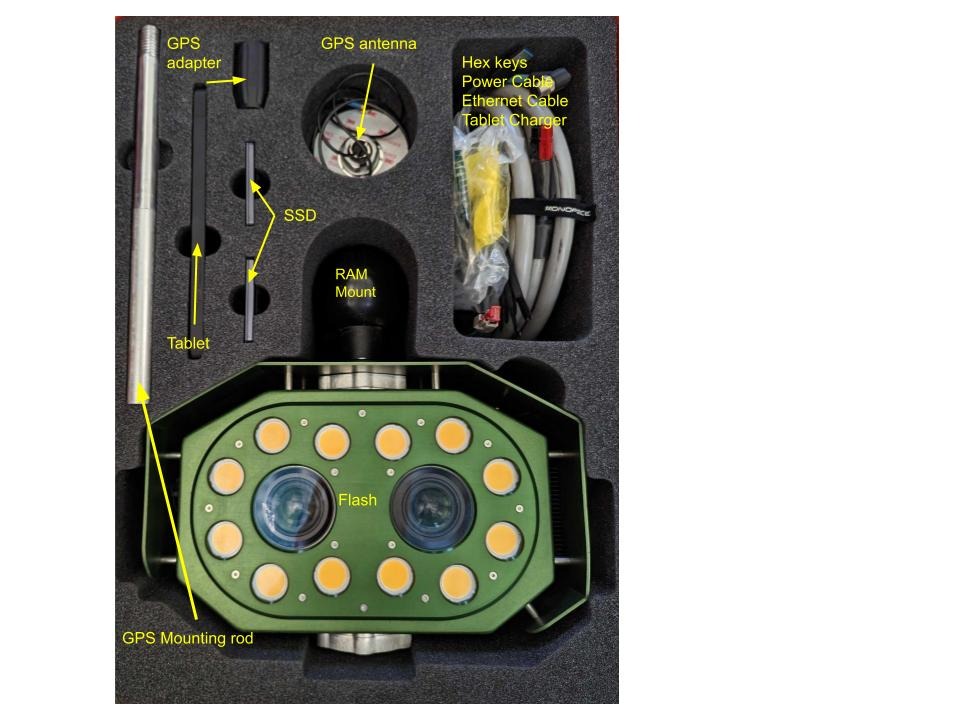
BloomGo Tablet
Tablet Charger
USB-A to USB-C power adapter
GPS Antenna
Threaded end with black cable
GPS Mounting Rod
Sliver shaft threaded end
GPS Adapter
Double threaded adapter
12V Power Cable
Grey cable
Battery Whip
Battery connection and inline fuse
Ethernet Cable
Blue cable
2.5” 1TB SSD Card
2 total
RAM Ball Mount
Hex & Torx Key Wrench Set
9 total
Additional equipment includes:
RAM Tablet Mount
Custom to vehicle setup
RAM Arm
Vehicle Mount(s)
Custom to vehicle setup
Mounting Hardware
U-bolts
MOUNTING FLASH ON VEHICLE
Before attaching Flash to your vehicle, consider the appropriate attachment point. The unit should face the left or right side to be close to an ideal 24 inch to 36 inch distance from the fruit zone or row of plants being scanned. If the fruit zone is close to the ground it may be best to attach Flash as low as possible, with the RAM ball on the top of the unit (as seen below). To record higher objects, the RAM ball can alternatively be unscrewed and reinstalled on the bottom of the Flash unit (or mount side). In any orientation, the GPS antenna should point upwards with a clear “view” of the sky.
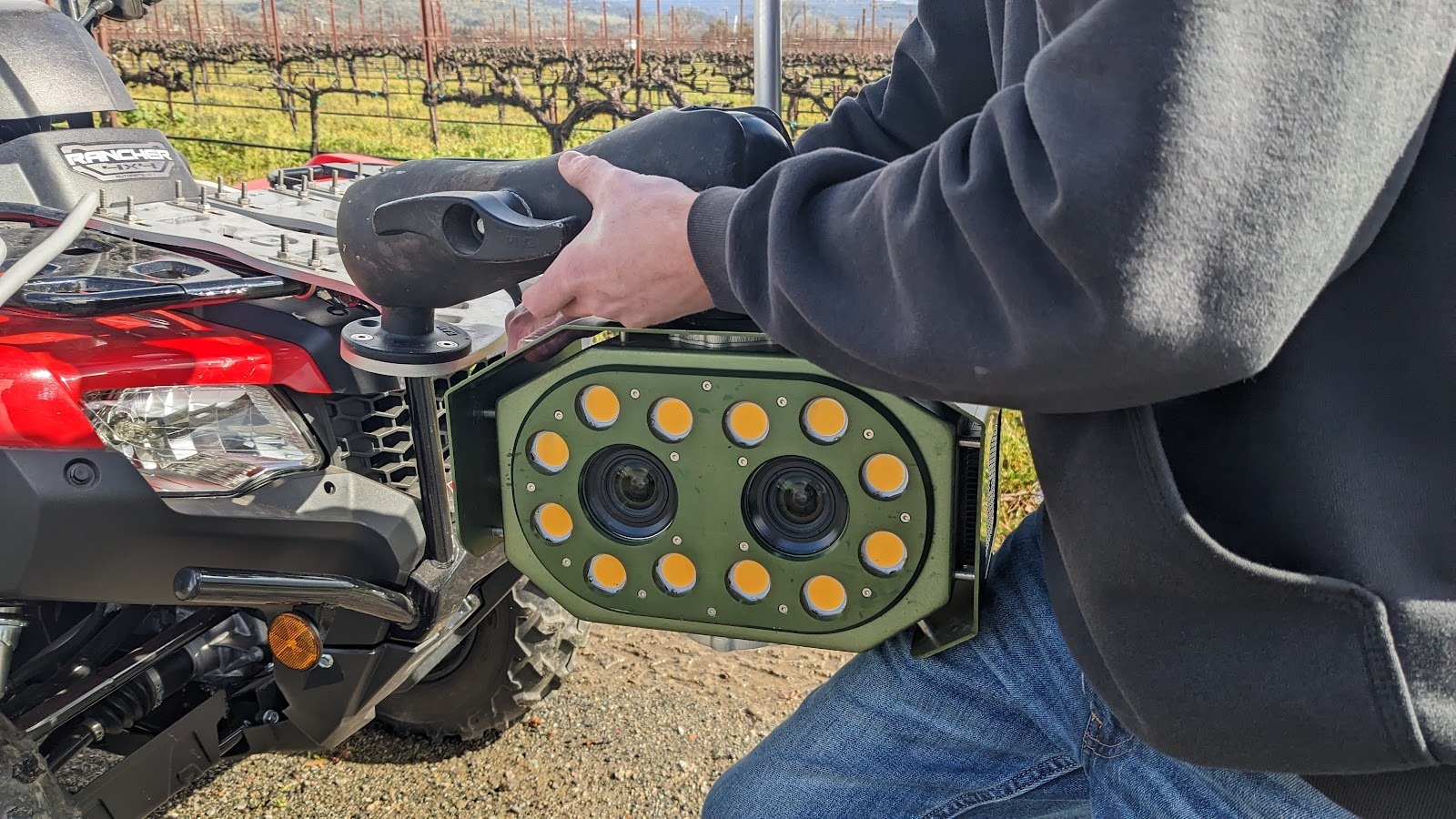
Step 1: While holding onto Flash at all times, loosely fit the RAM arm over both the mount RAM ball and the Flash RAM ball.
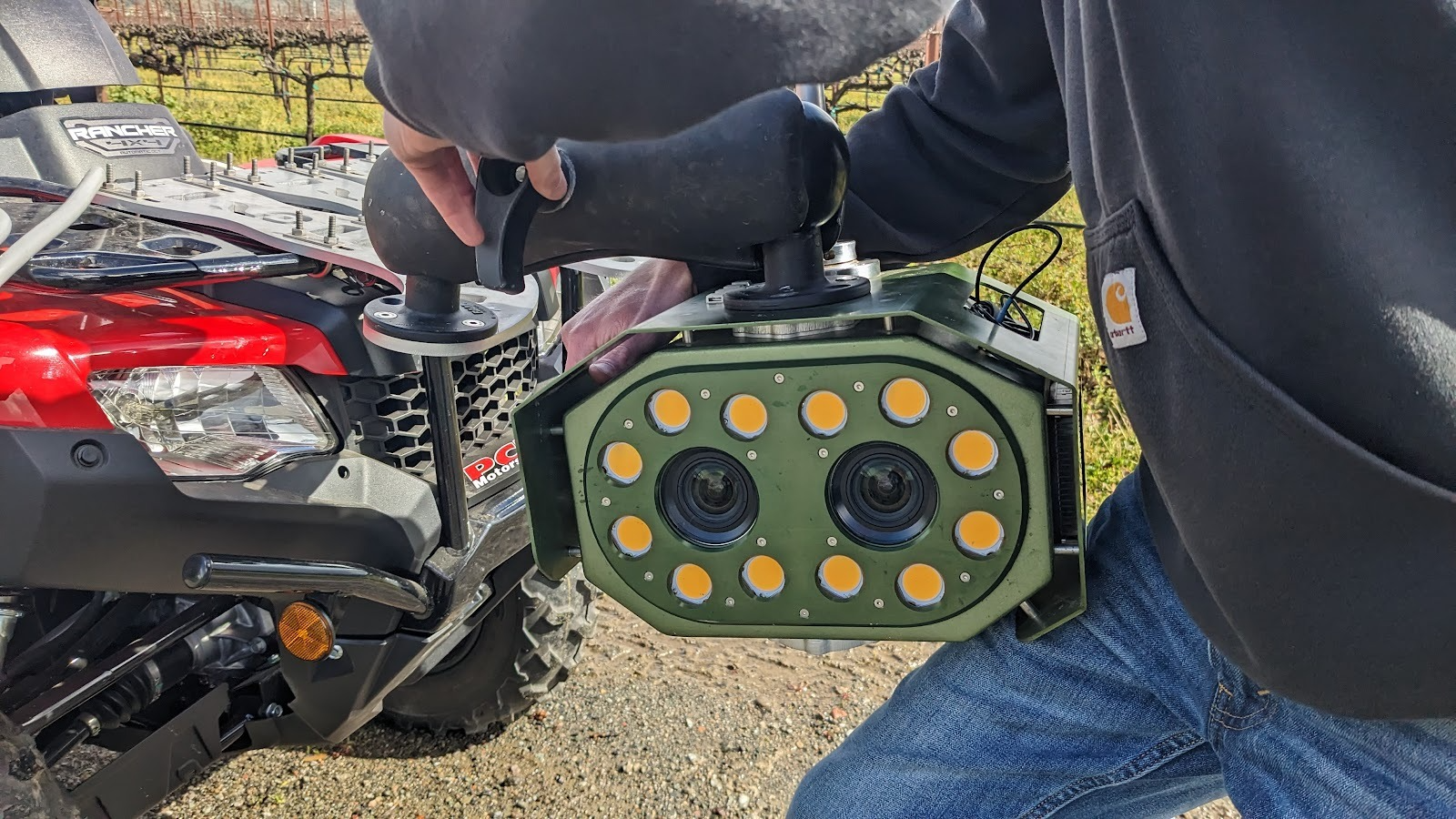
Step 2: Begin turning the RAM arm handle clockwise to tighten the arm.
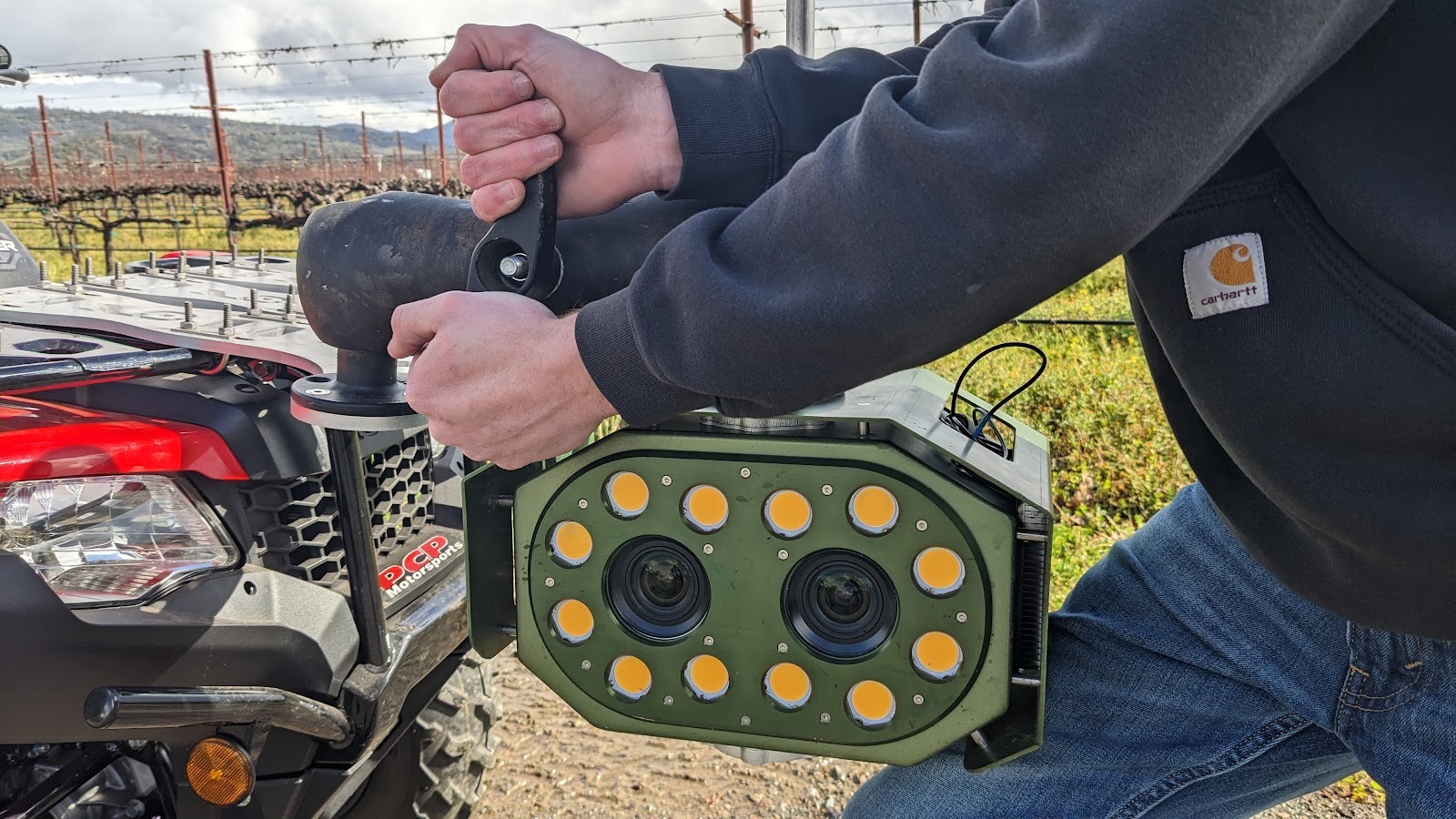
Step 3: Tighten as much as possible by hand until the unit feels supported.
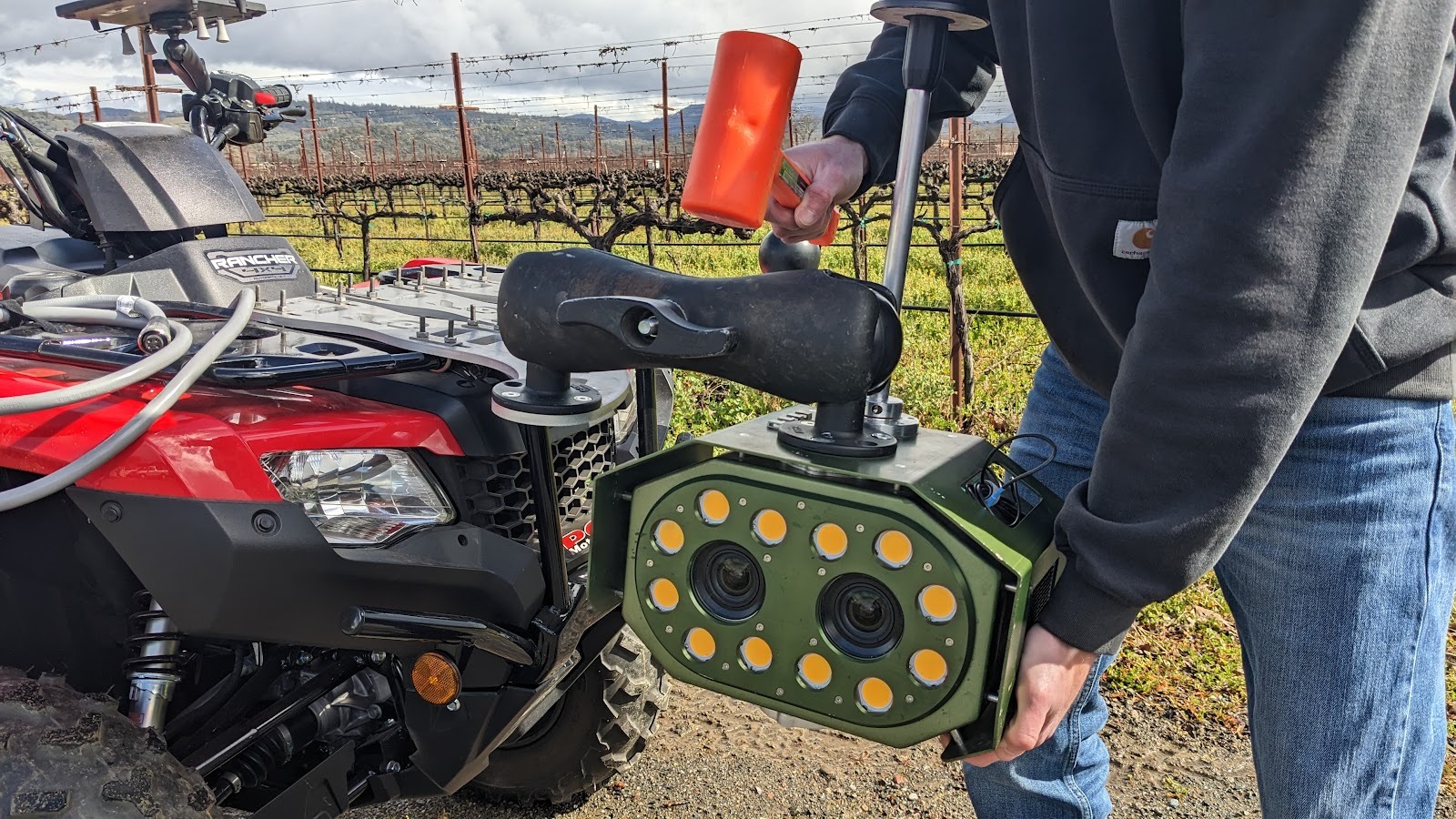
Step 4: Ensure that the unit does not move during operation by using a dead-blow hammer to tighten the arm.
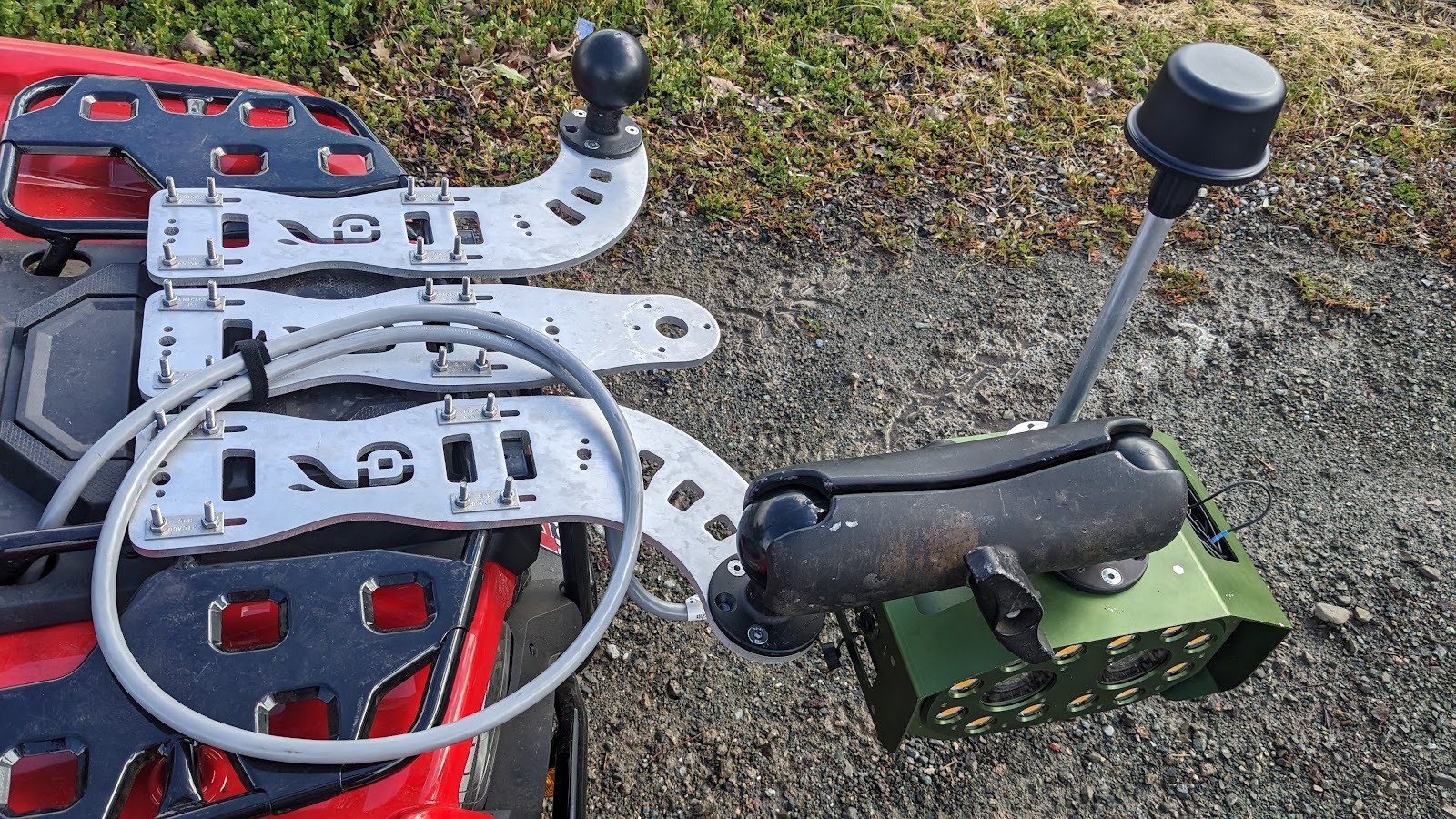
A well-tightened connection should fully support the weight of the camera.
Once the unit is affixed to the vehicle it can be moved to the start of an “alley” between two rows to connect to aim the camera.
POWERING FLASH
A power cable and wiring for your specific vehicle should be installed by a technician. Because the unit is typically connected directly to your vehicle, it should only be connected when the vehicle is already running. Low-voltage cut offs can be installed to prevent the potential for unintended battery drain. Please reach out for any technical questions.
To power up Flash, do the following:
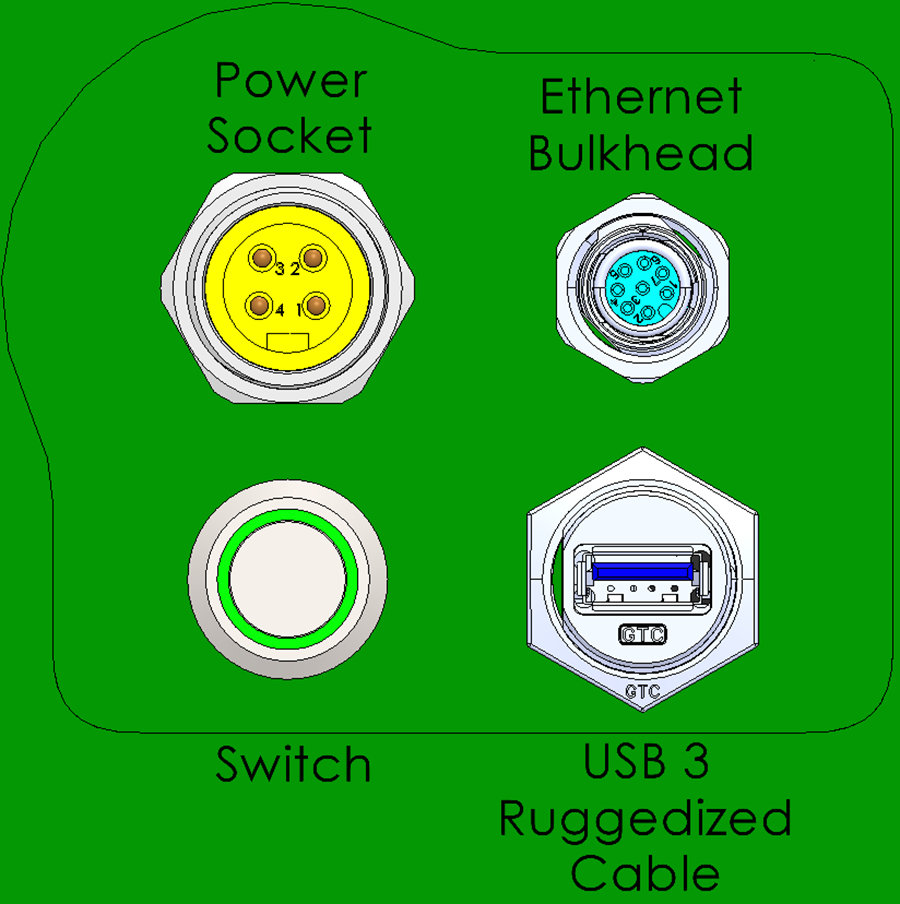
Plug the gray vehicle power cord into the yellow power port on Flash in the upper left.
After threading the plug on by hand you should hear a humming sound, indicating that Flash is running. The LEDs will flash twice after 1-2 minutes indicating that it is ready to scan.
STARTING THE BLOOMGO APP
The BloomGo software is used to control the Flash camera system in the field to record scans of your crop. The BloomGo app runs on a provided tablet, communicating with and controlling the Flash system through a Wi-Fi connection.
We recommend the tablet being fully charged before starting the collection.
To begin, click on the BloomGo icon to open the app.
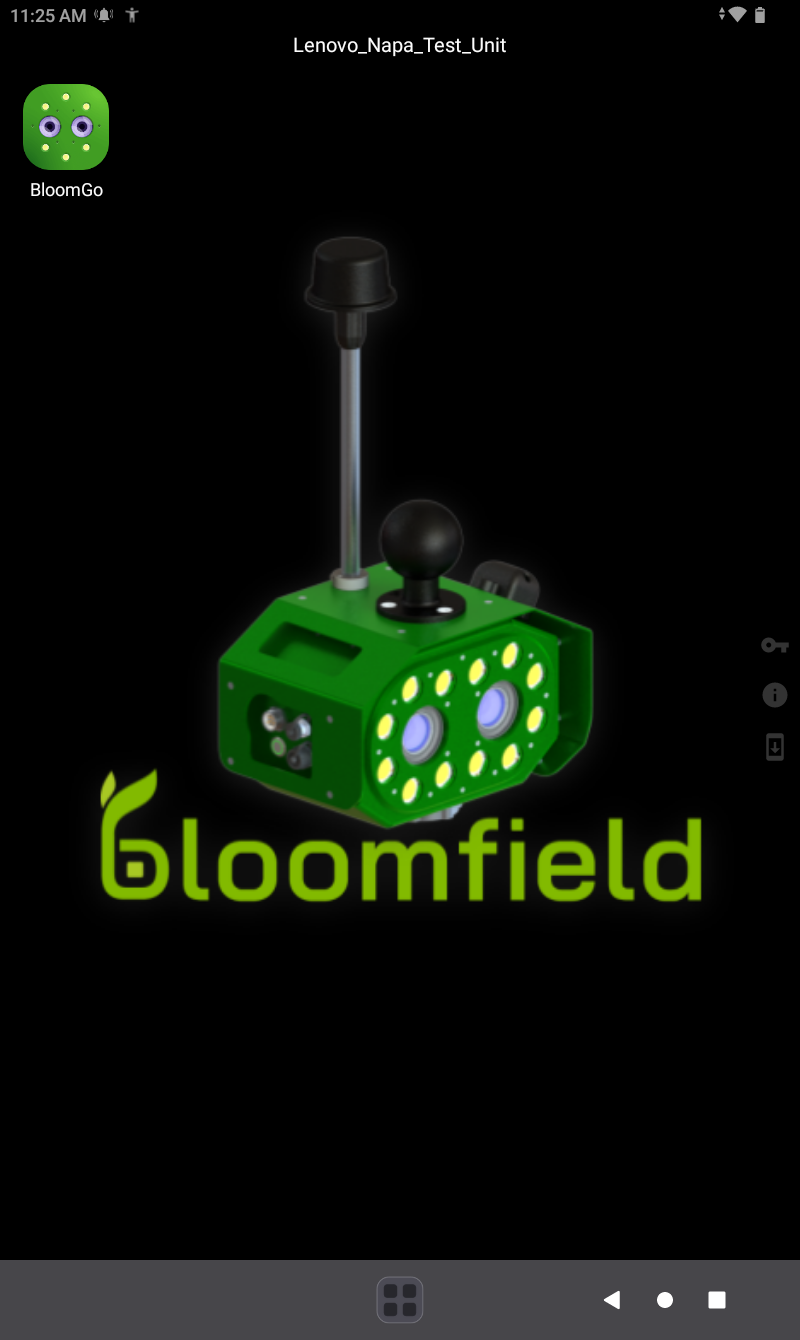
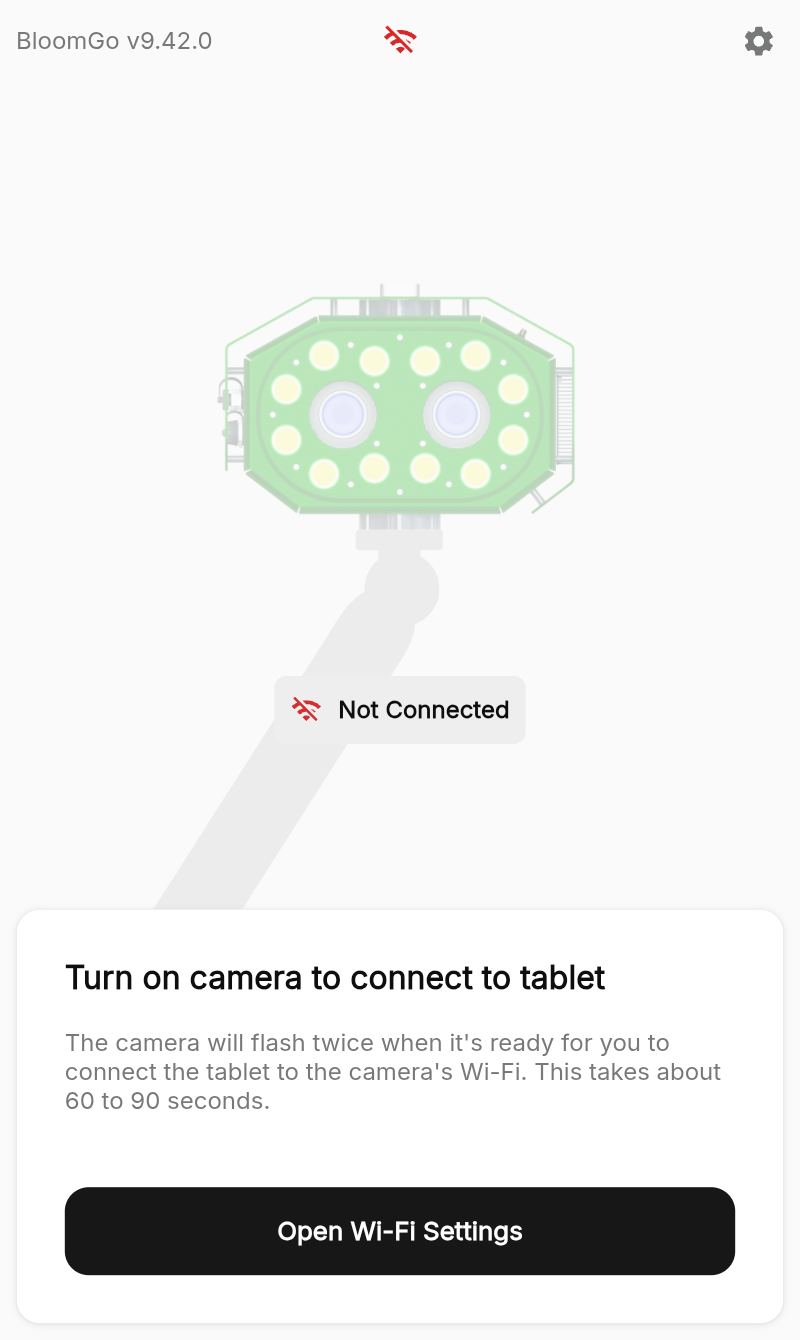
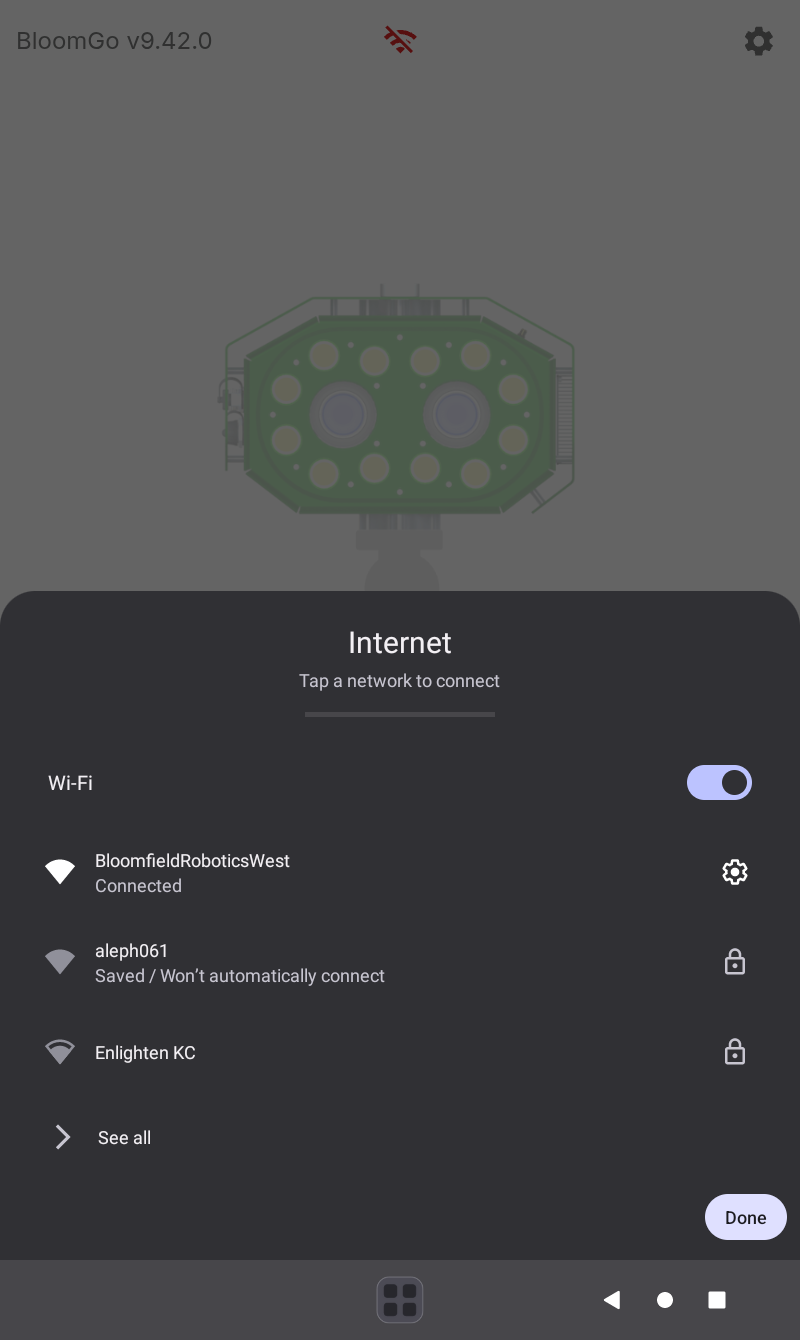
Tap “Open Wi-Fi Settings” and select the Flash unit number you have, it will be “aleph###”
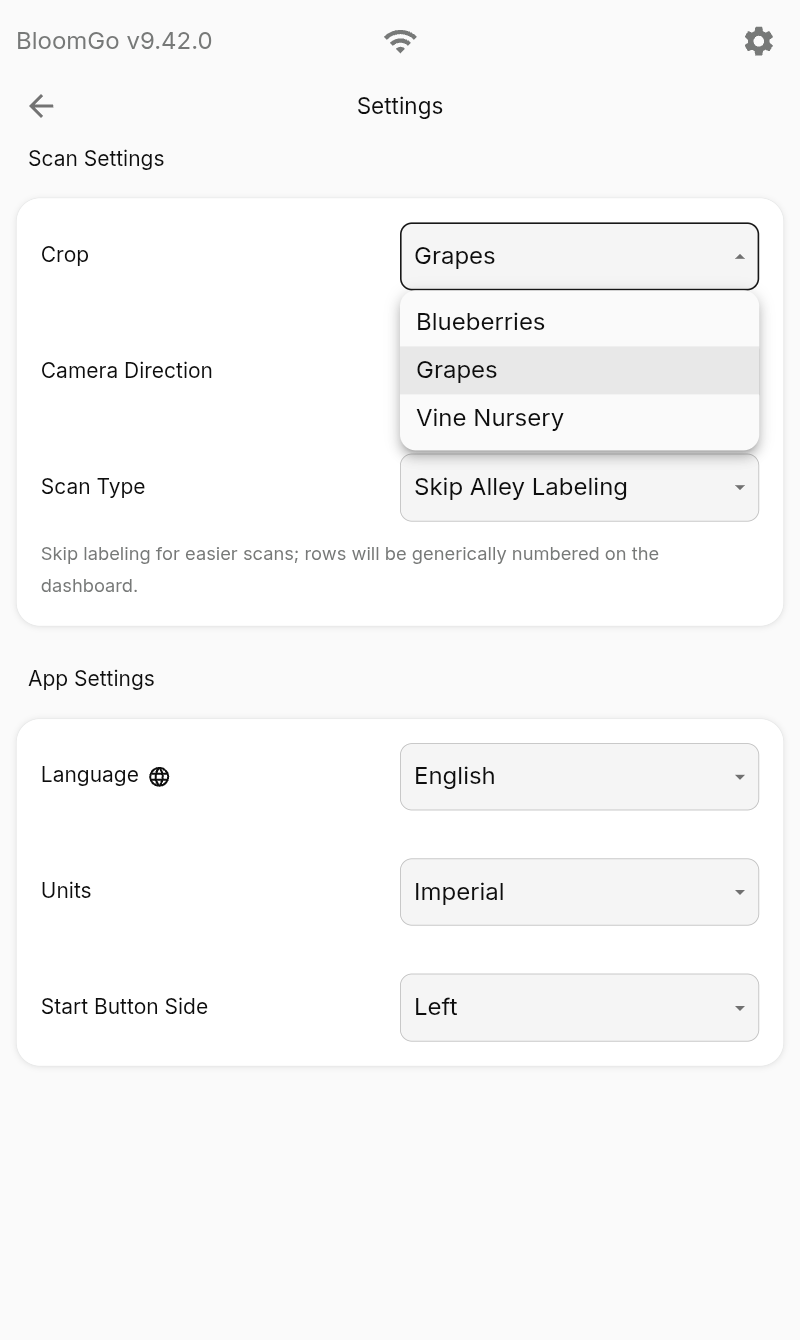
Choose Your Crop: Press the gear icon at the top right of the tablet and select the crop you will be scanning. On this page you can also change the language, camera direction, scan type and the units displayed.
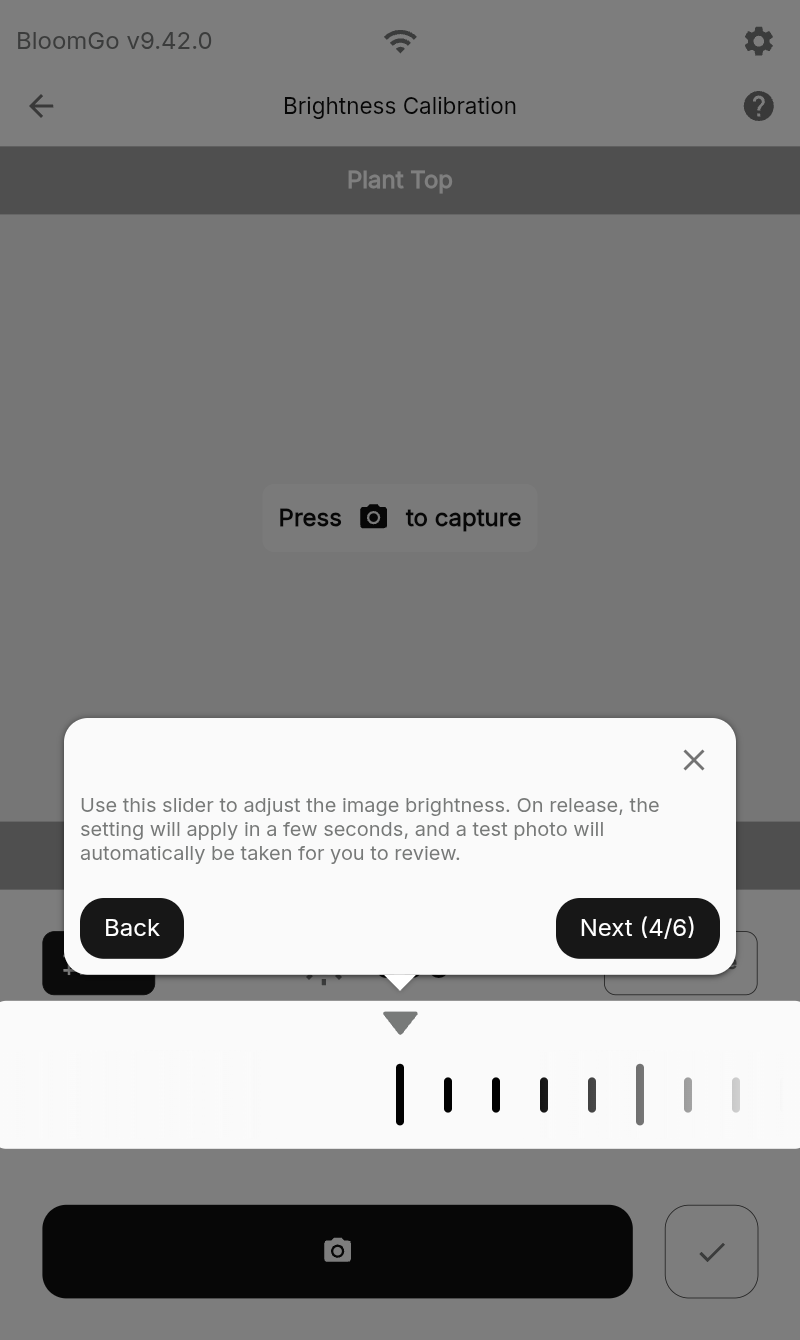
During the aiming step,(first time user click the ? to be guided on each button on screen )
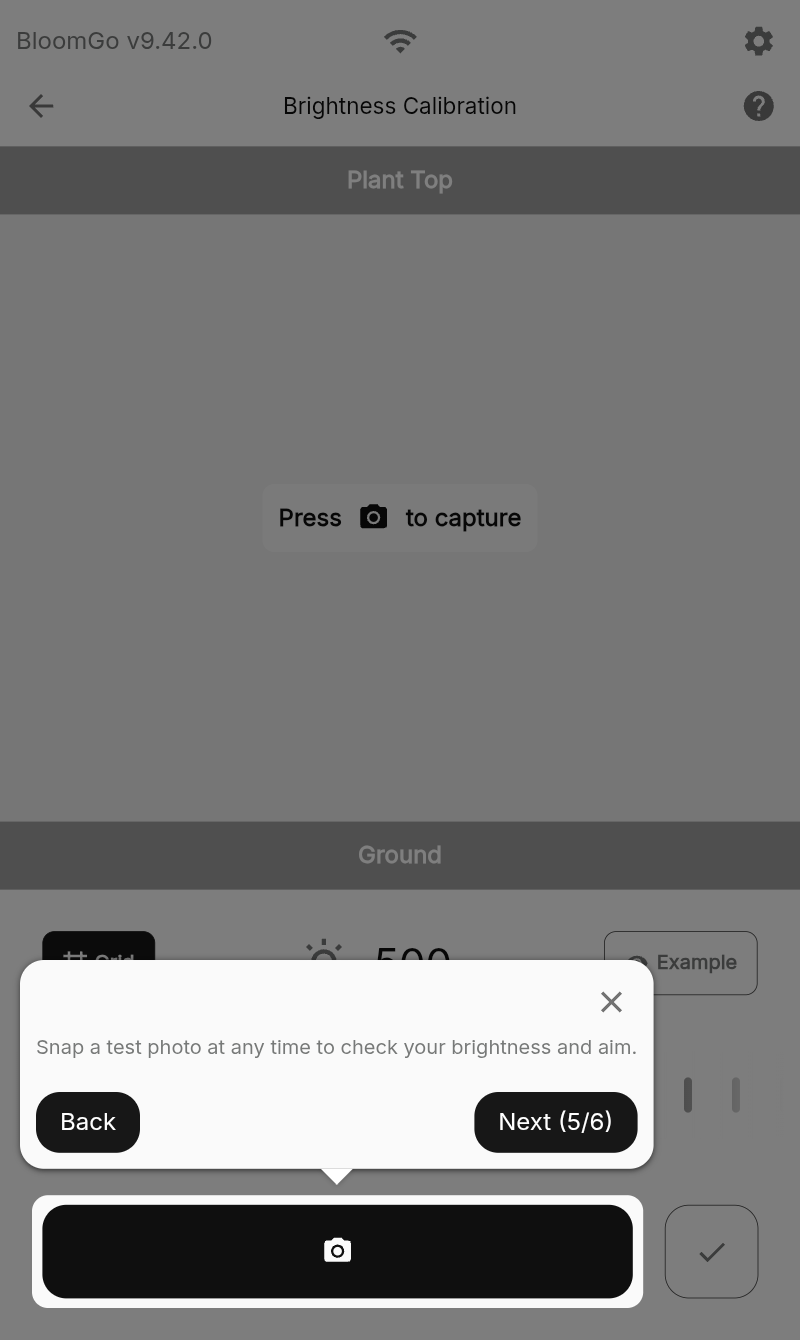
Every time you press the camera icon you will see imagery from your field. Loosen the Flash unit with the dead-blow hammer and adjust the positioning so that the part of the crop measured is centered in the frame. Compare the image you see on the screen with the Example by pressing and holding to view an example image to try and best match the brightness of the image by dragging the slider (further detail below) .
By default Flash should be positioned parallel to and 24 inches(.6m) away from the object. This distance can vary based on crop, training system, or feature. In some cases the unit should be mounted above and below the object and can be additionally tilted up or down along a horizontal axis for a better viewing angle.
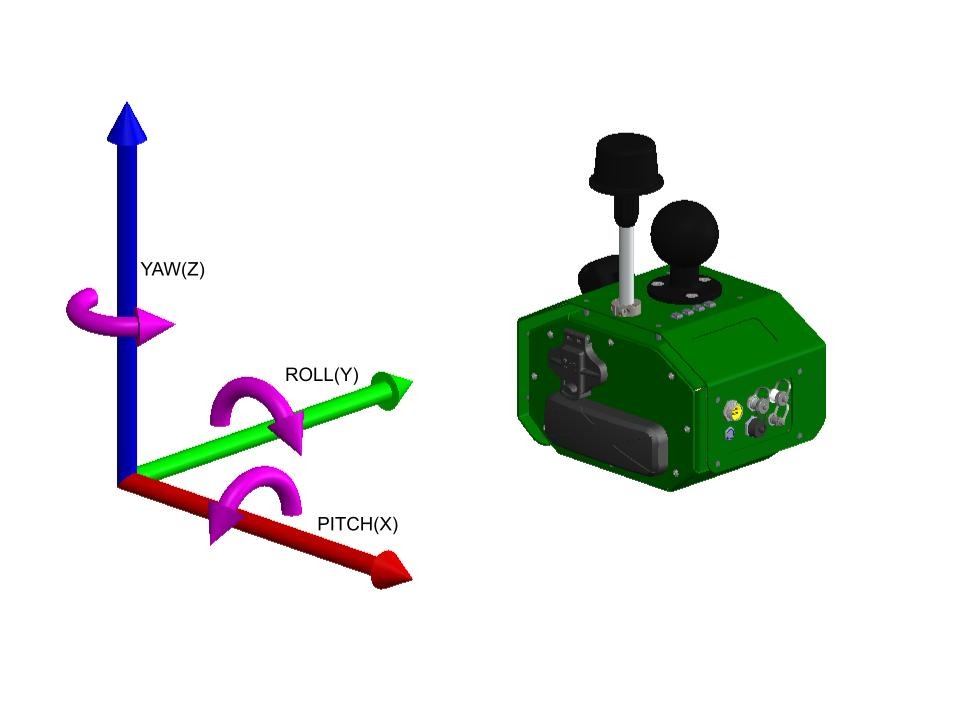
Aiming tip: If the Flash unit (left) is facing the object of study, it can be “pitched” along the x-axis to frame the object from above or below. However, avoid rolling the camera along the y-axis or adjusting the yaw by rotating the z-axis.
Once the image is centered in the right frame of BloomGo, re-tighten the RAM mount.
Adjusting Exposure: Use the slider at the bottom of the tablet to find the right brightness level for the field conditions. The lower the value the darker the image will be.
The plant should appear uniformly illuminated and visible on the table. Avoid setting too low (resulting in dark images) or too high (resulting in a white, overexposed image). Typically, it will be in the 600-800 range.
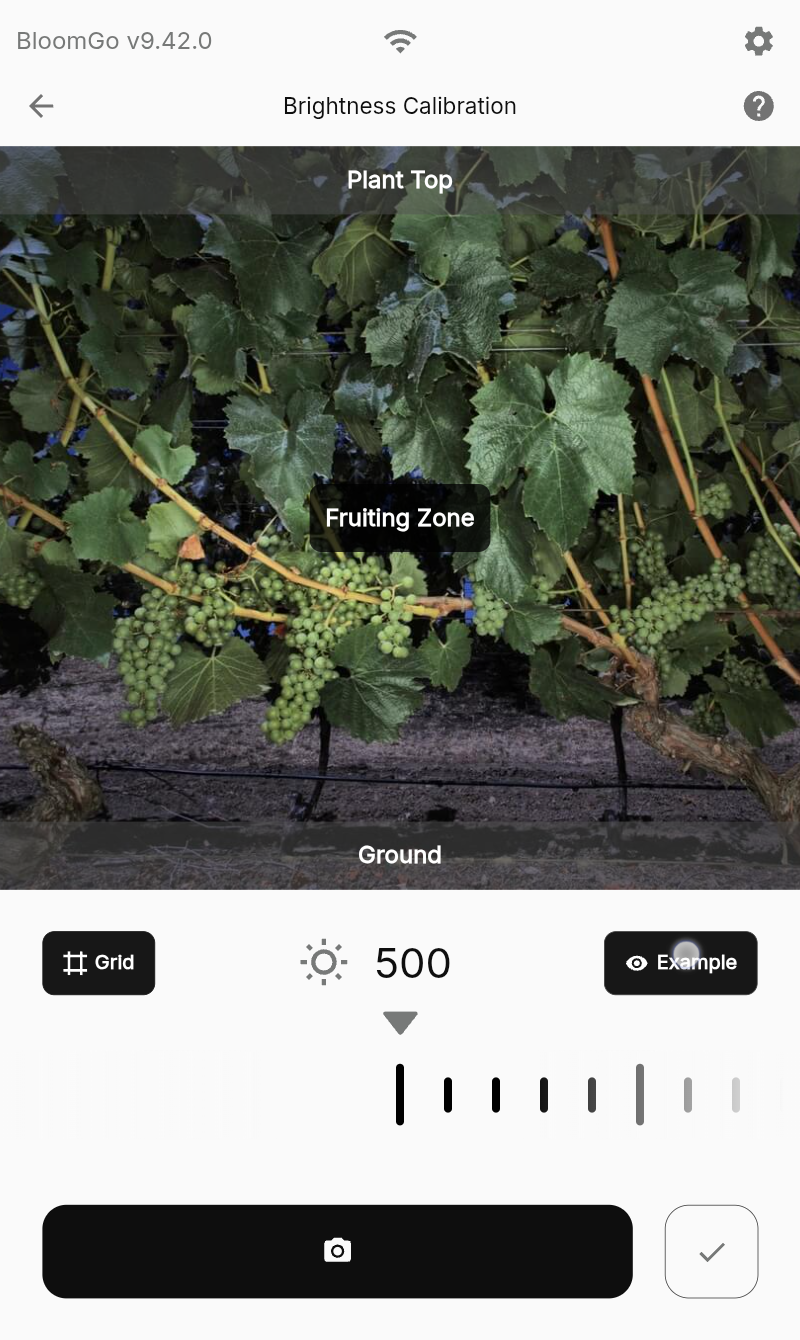
When satisfied with the brightness click the check mark to move on to the SCAN page.
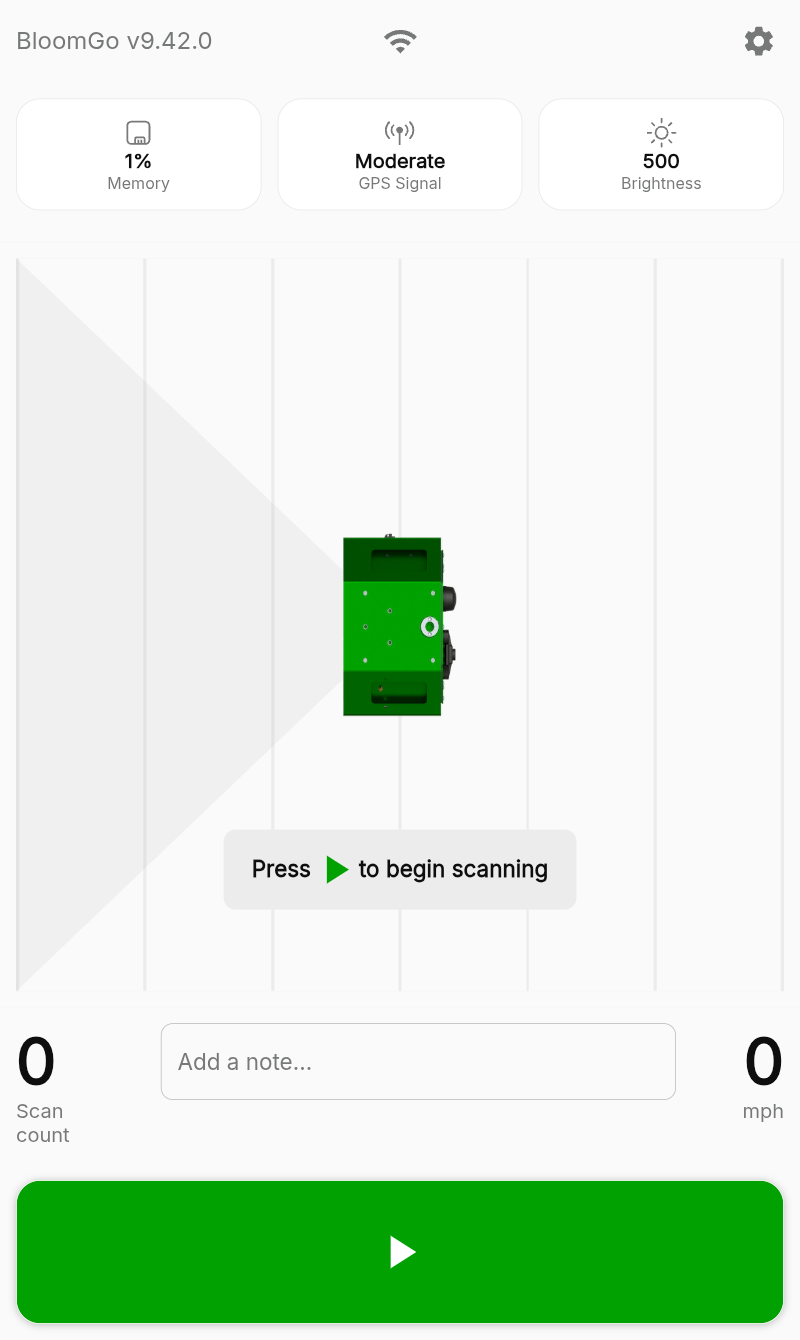
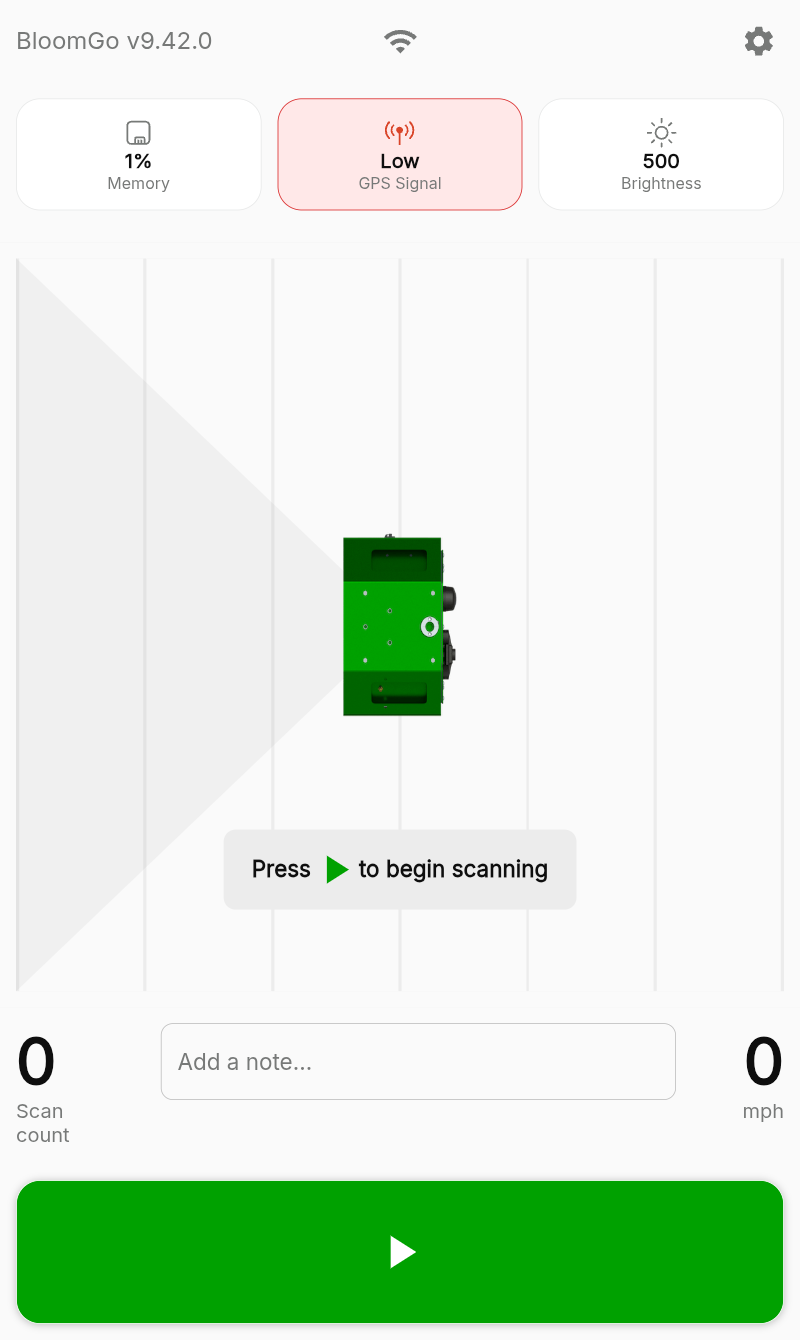
Wait a few minutes for the GPS to build accuracy, the icon will appear like this in the top middle portion of the screen. If the accuracy is low and the icon is red, you won’t be able to scan until you have a better GPS signal, make sure the antenna is pointed up towards the sky and try to limit obstructions.
SCANNING YOUR CROP WITH FLASH
Once you have properly positioned the camera, the Flash system is ready to begin the collection.
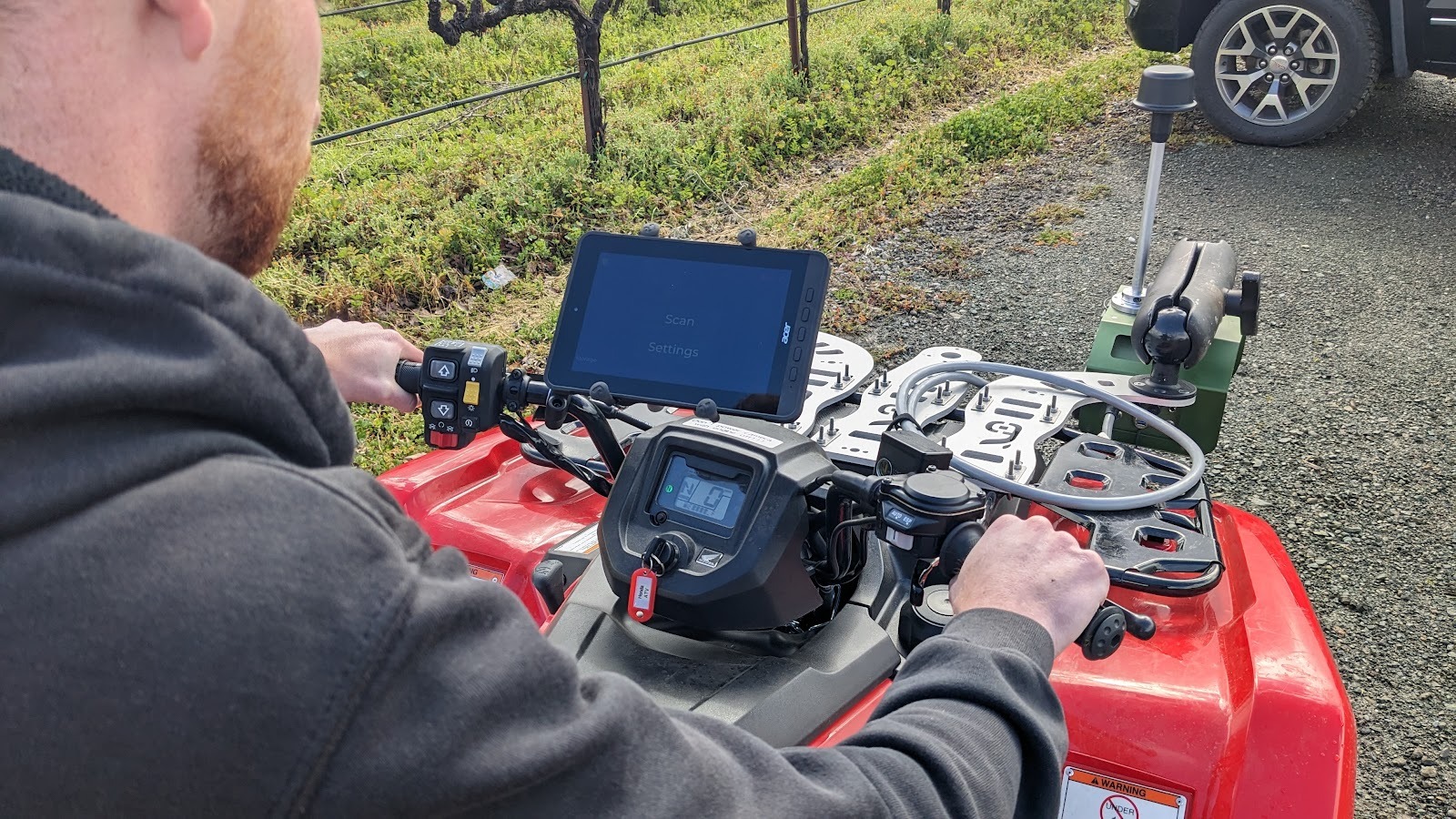
Mount the BloomGo tablet to the RAM tablet mount on the vehicle.
Scan settings by hitting the Cog icon
Passive Mode - Indicates whether to predefine an “alley” or location for each row being scanned. When toggled to blue, “passive mode” is ON and requires no row number input from the operator.
When you are at your starting row press the Green record button to begin. It will turn Red and Flash will begin recording. The screen should update with imagery.
Drive down the row at a safe speed, less than 10 mph (16kph) and stop at the other end of the row. Press the Red button–indicating recording in progress–to stop the recording.
In “passive scanning” mode, you do not need to do manual alley selection. It uses the GPS point data and will accurately map where you are in the field. However, if you prefer not to use “passive mode” and assign row labels as you are going down you can toggle it off and follow these steps on manual scanning.
Continuing to the scan page you should see a version of the scan control page that allows you to enter an “Alley” number.
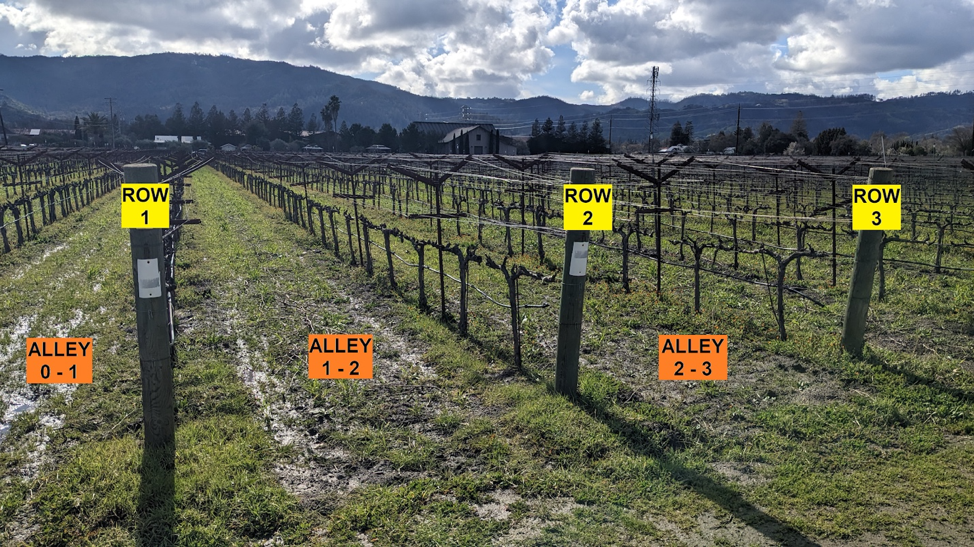
An “Alley” is used to register the rows you are driving down during the scan. Example, if you are driving down rows 1 and 2, then you should set the alley to “1 - 2” using either the “- 1” and “+ 1” buttons.
If you are driving on the outside of the first row of the block, then you are in “Alley 0 - 1”
If your block has 50 rows and you are driving outside the block next to row 50, then you are in “Alley 50 - 51”.
Once you have selected the correct Alley, press the Green start button. Flash will begin to record and the screen will update with imagery. Drive down the alley at a safe speed and stop at the other end of the row. Press the Red button–indicating recording in progress–to stop the recording.
Repeat for each row you record, making sure to change the Alley (If not in passive mode) a custom iteration, in this case “- 5” and “+5”, can be changed on the main settings page.
In the scan view, if you tap the memory box in the upper left you will be taken to this list of your
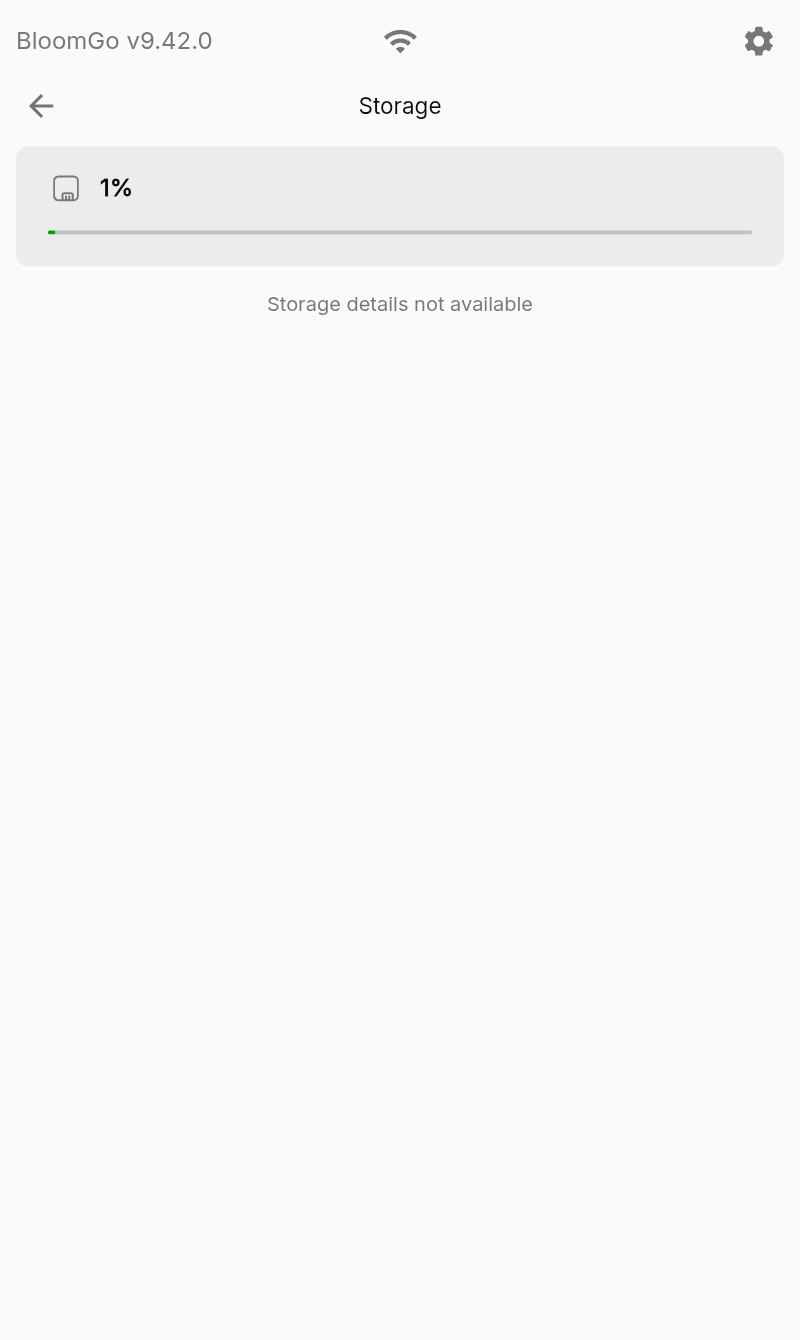
“Scan Inventory” of all of your previous scans from the session.
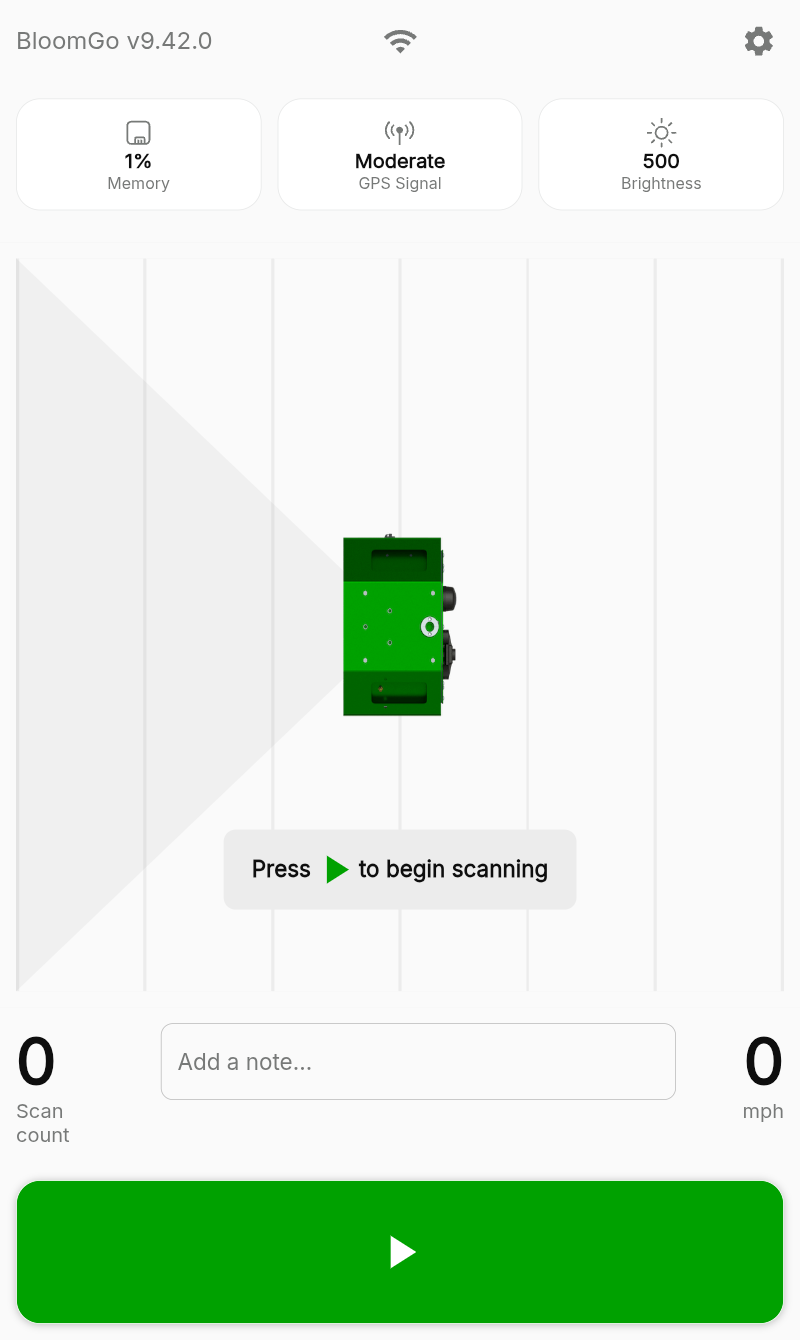
On this page you can see a list of previous alleys scanned and the duration. Here, in the non-passive mode, they are indicated by assigned alleys and listed from recent to earliest; when viewing this page in passive mode, the scans are assigned a sequential row number as they are recorded.
A progress percentage at the top of the Scan page shows how full the SSD card is becoming. Prior to reaching 100%, swap out SSD cards between rows when the unit is not actively recording.
There is no additional save required within the app. Once you have completed scanning for the day, close the BloomGo app and remove the SSD card from Flash. Your scans are ready to be uploaded via Diaspora or Smasher.
UPLOADING SCAN DATA VIA DIASPORA
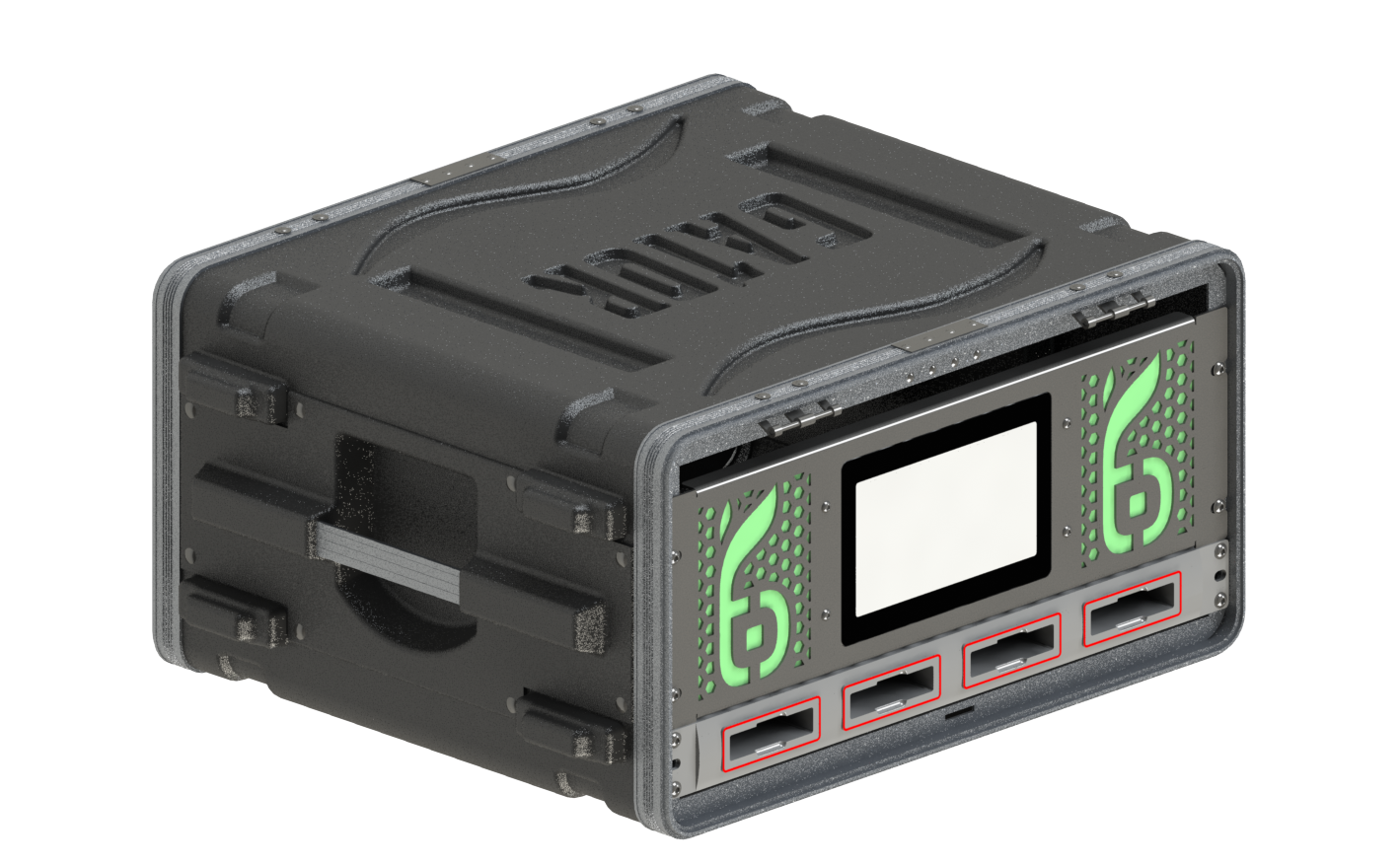
The Diaspora is a dedicated unit provided for the fast upload of large scan files. For initial setup connect the Ethernet and power cables to their sources.
Locating the Diaspora:
The main function of the Diaspora is to upload the contents of the SSD drives to the internet prior to processing. In addition to electrical power it is critical to install the Diaspora in a location with an Ethernet connection with sufficient upload speed. A slow upload speed can result in significant delays prior to data processing, prolonging the wait time for results.
To determine if a location will have sufficient upload speed for your data delivery requirements, first run a speed test on a device connected to the network. For most realistic results, use a computer that is connected to the network via Ethernet cable, as this is the type of connection used by the Diaspora. Some test options are below:
Fast.com: Internet Speed Test
Speedtest by Ookla - The Global Broadband Speed Test
Internet Speed Test | Check Broadband Speed | Google Fiber
A typical result is shown below:
Note the “Upload Speed” which is the crucial metric. In the example above the network upload is 790 Mbps.
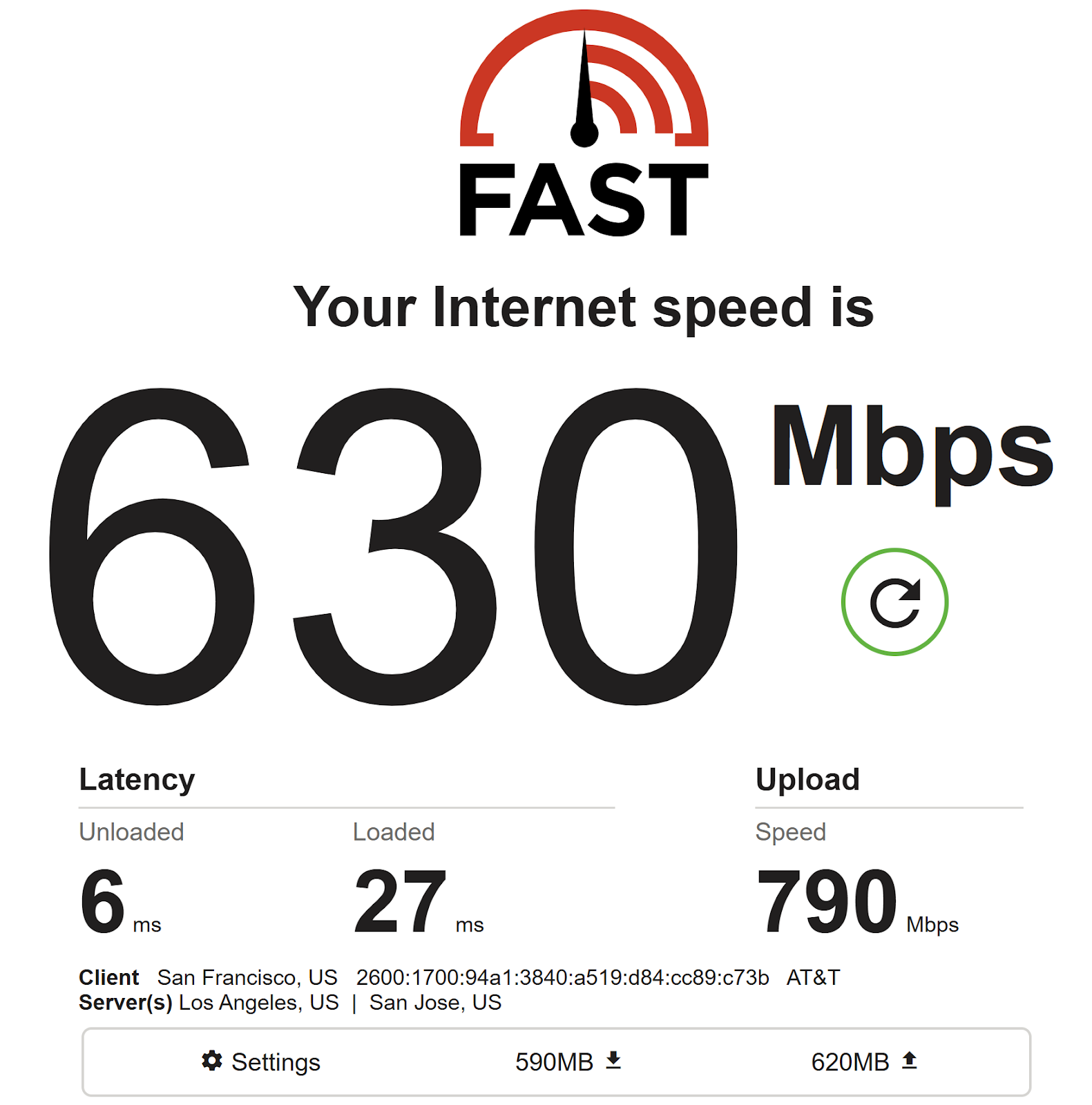
The Bloomfield camera records at around 500 Mbps, so if the upload speed is 500 Mbps, it will take 1 hour to upload 1 hour of recorded data. If the upload speed is 100 Mbps, it will take ~5 hours to upload 1 hour of data.
The following table can be used to estimate upload time based on duration of data recorded and the network upload speed:
A 50-100 Mbps upload speed may be sufficient for data collections less than a few hours, but is likely too slow for larger scans, multiple camera deployments, or urgent data delivery.
Remember that the Diaspora is only uploading data, and that additional processing time is required after the upload completes.
Setting up the Diaspora:
After the Diaspora has been plugged into wall power and Ethernet, the unit will take a minute to boot up. Once complete, the display screen on the Diaspora should look like this.
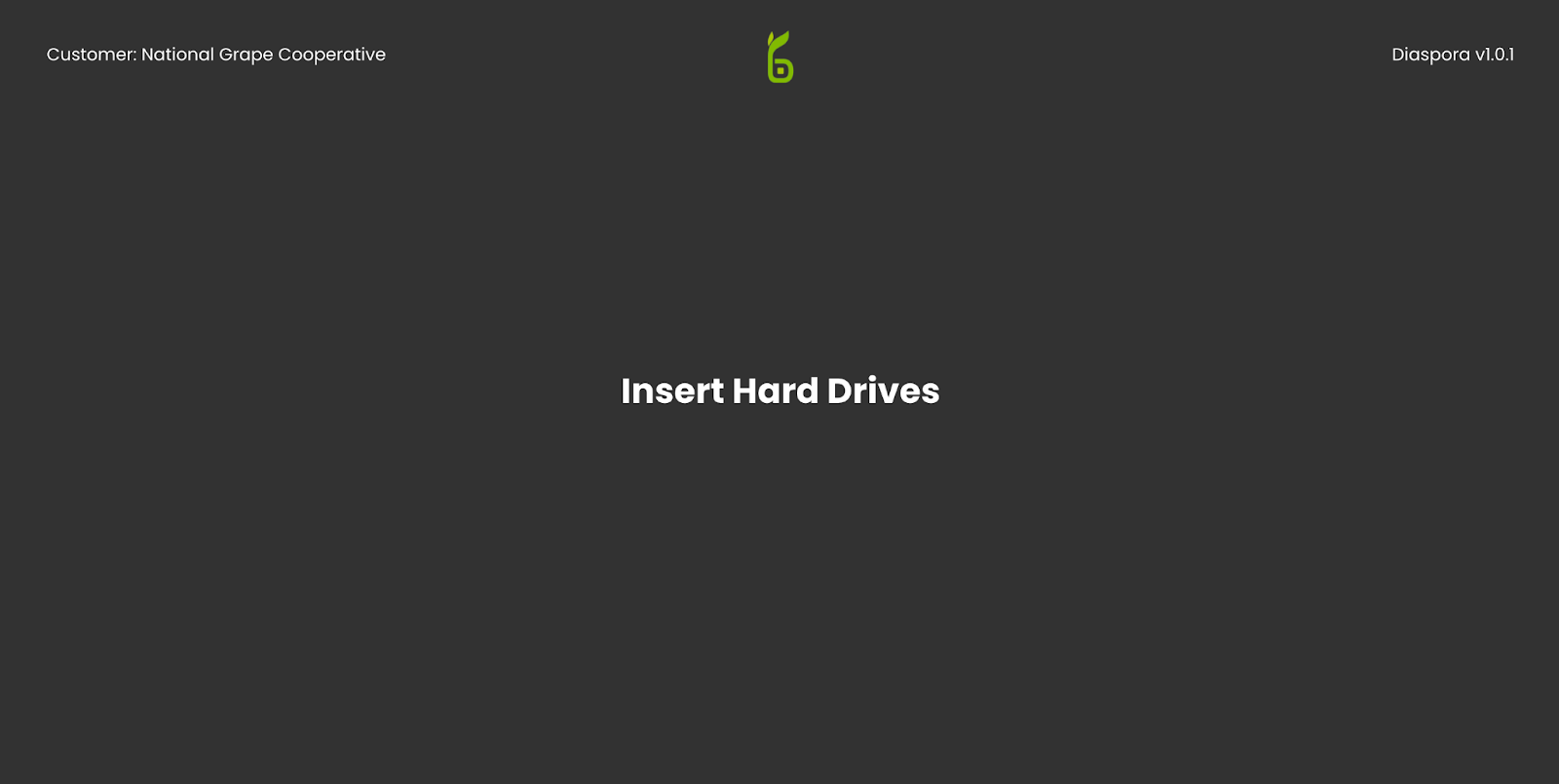
This indicates that the Diaspora is ready for data to upload. To begin, just insert a hard drive (connectors facing down) in one of the slots just below the screen.
L
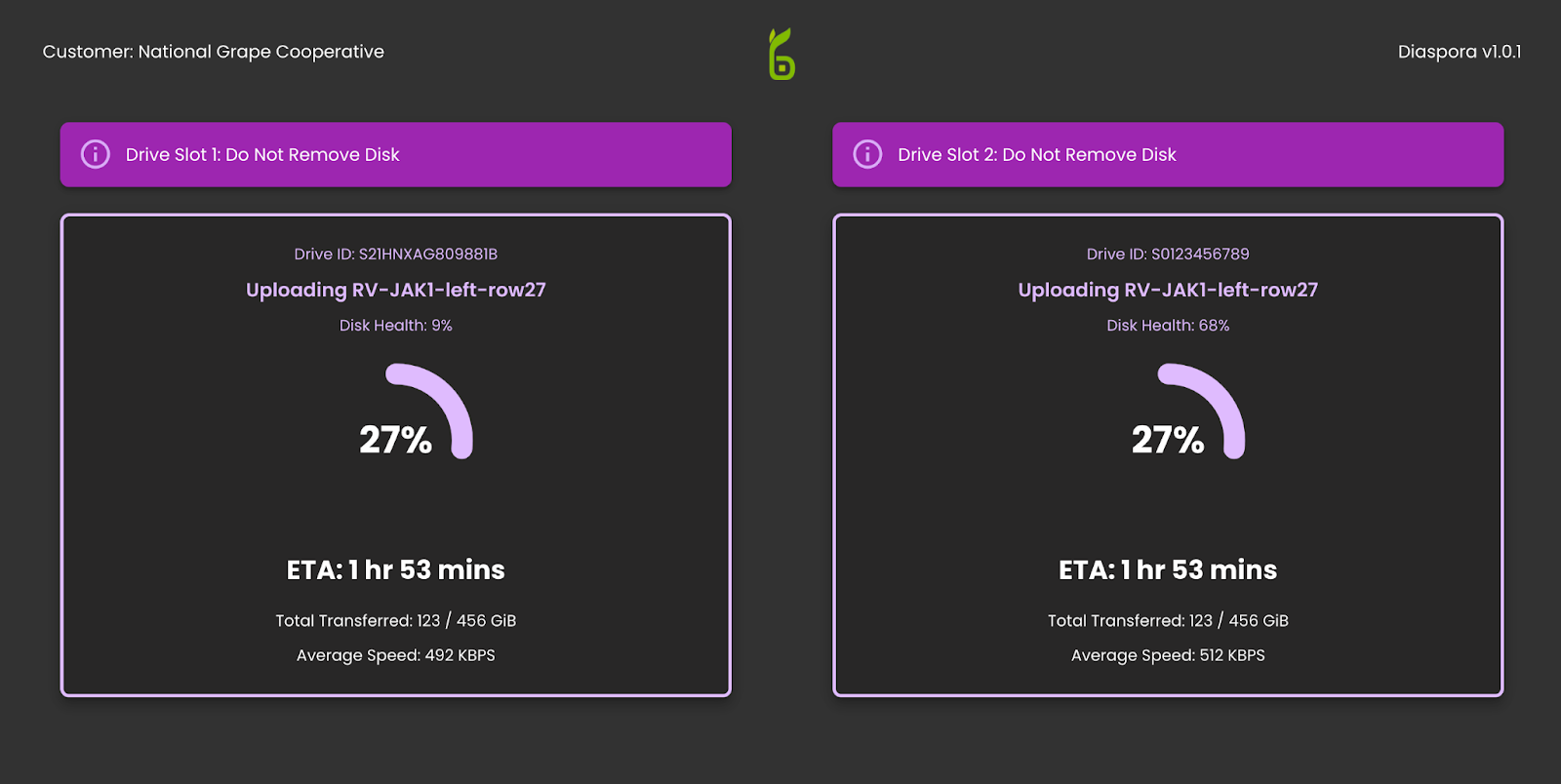
After one or more drives have been inserted into the Diaspora uploader unit, you should see the display change to an upload progress screen (above). This will tell you which file is currently being uploaded, the percentage of data still left to upload and the time remaining in the upload.
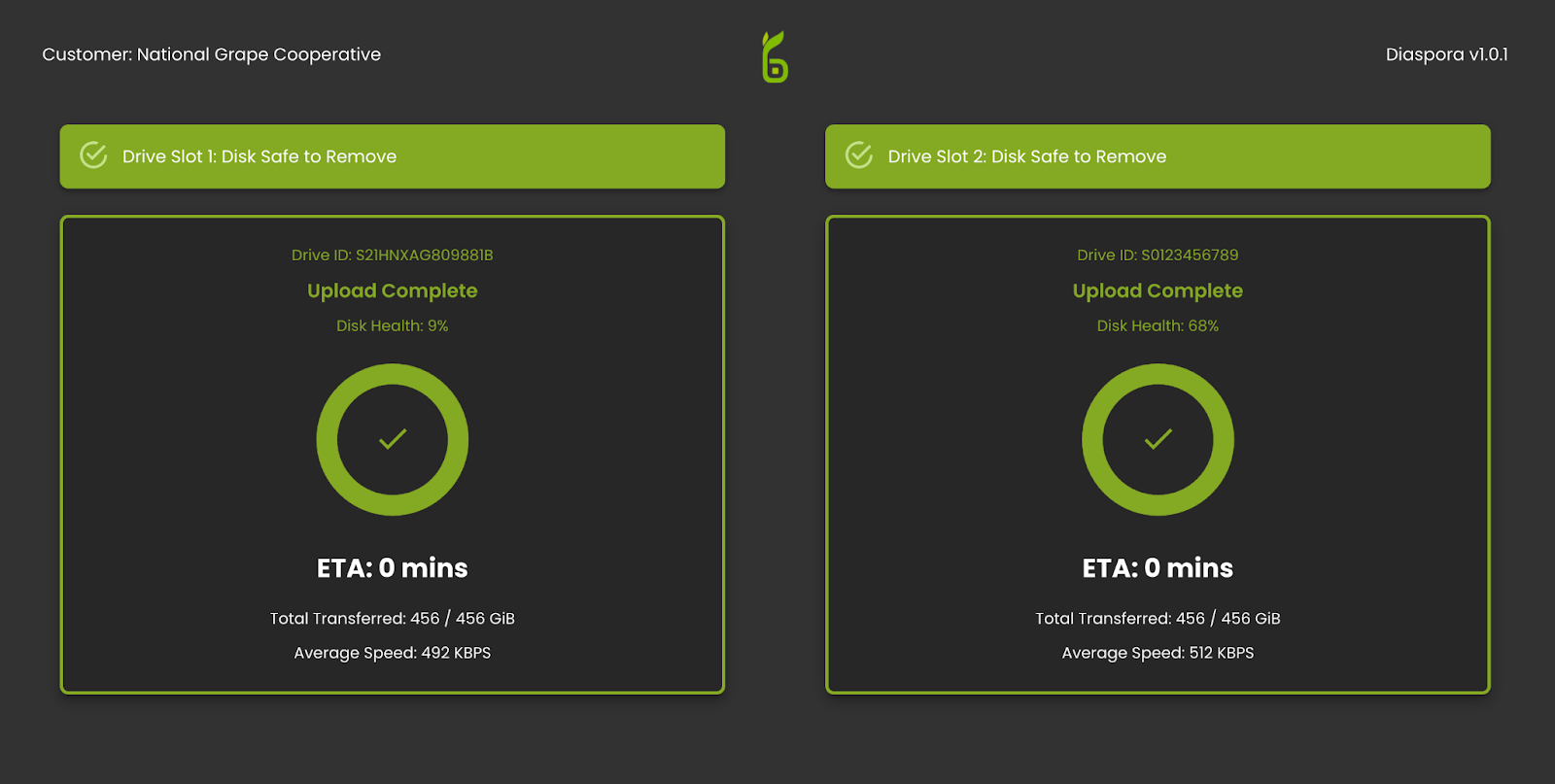
Do not remove SSD while upload occurs. Once the upload finishes, the display will change again to green (above) indicating that the upload has been successfully completed and the hard drives are ready to be removed.
HARDWARE APPENDIX - GPS ANTENNA AND SSD INSTALL
Prior to operating Flash, it is first necessary to install the GPS antenna and insert an SSD card.
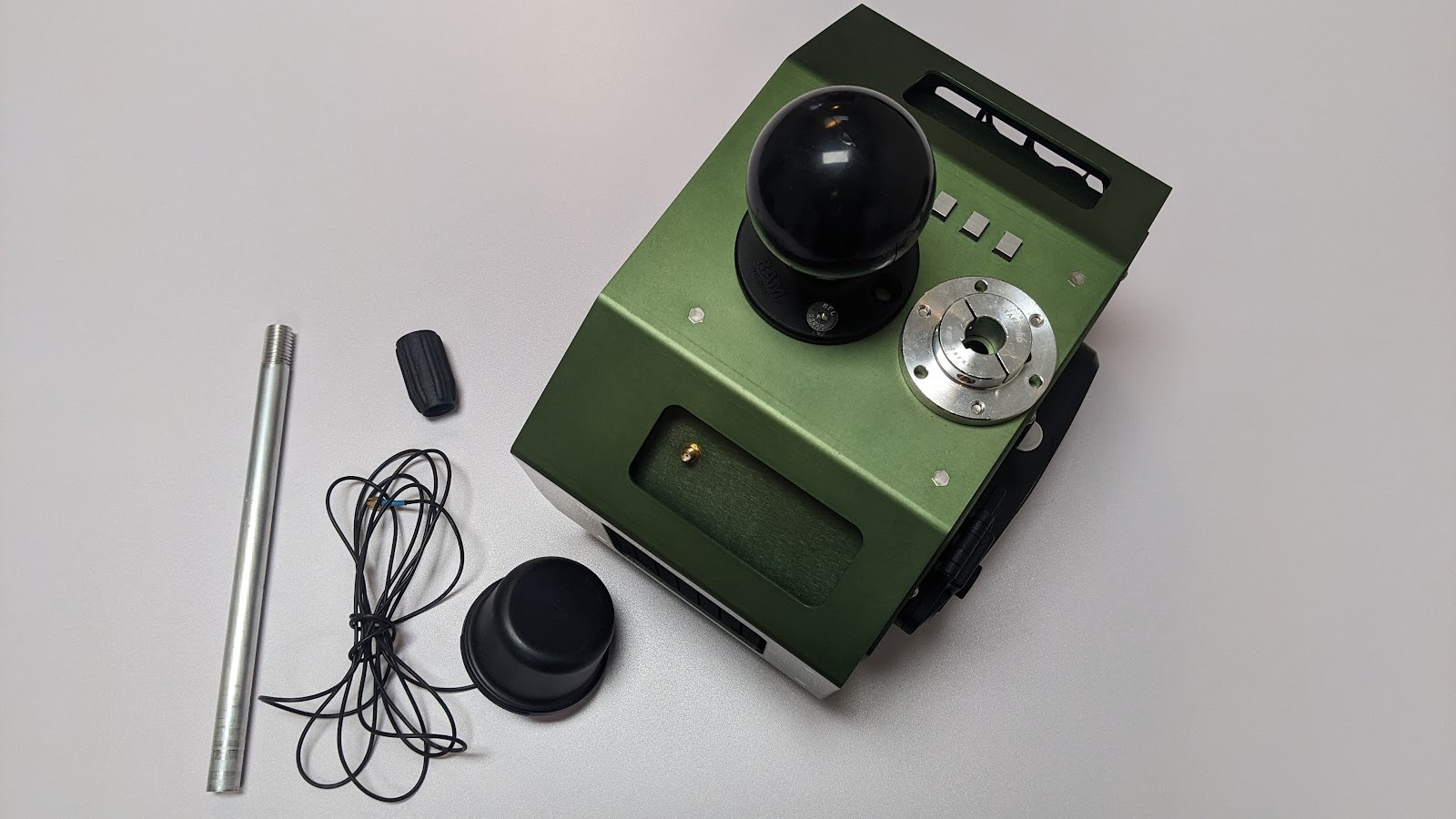
Parts required for GPS installation:
GPS Mounting Rod
GPS Antenna
GPS Adapter
Flash Camera
Step 1: Thread GPS adapter onto GPS mounting rod.
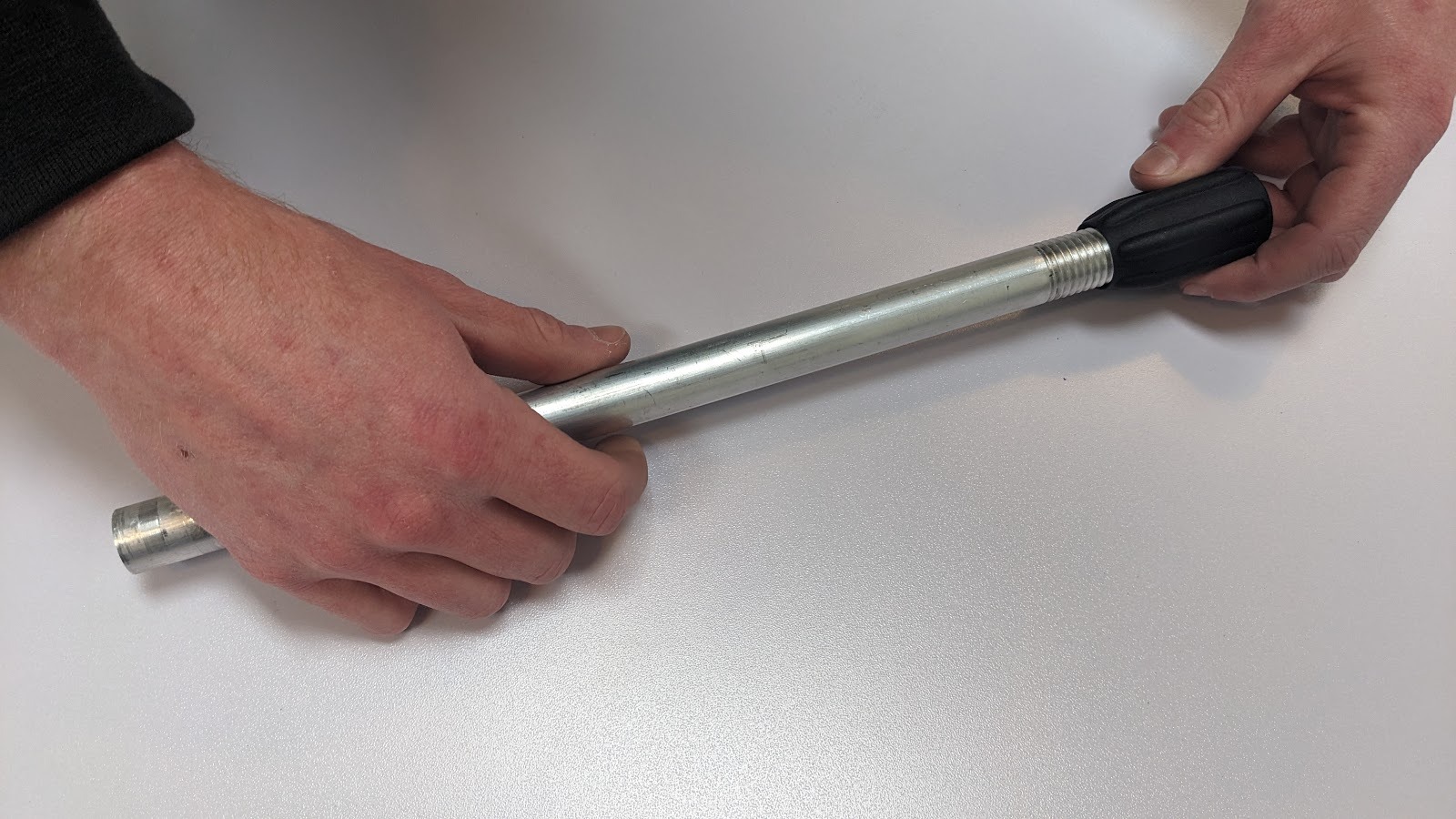
Step 2: Insert the connector on the GPS antenna cord into the GPS adapter.
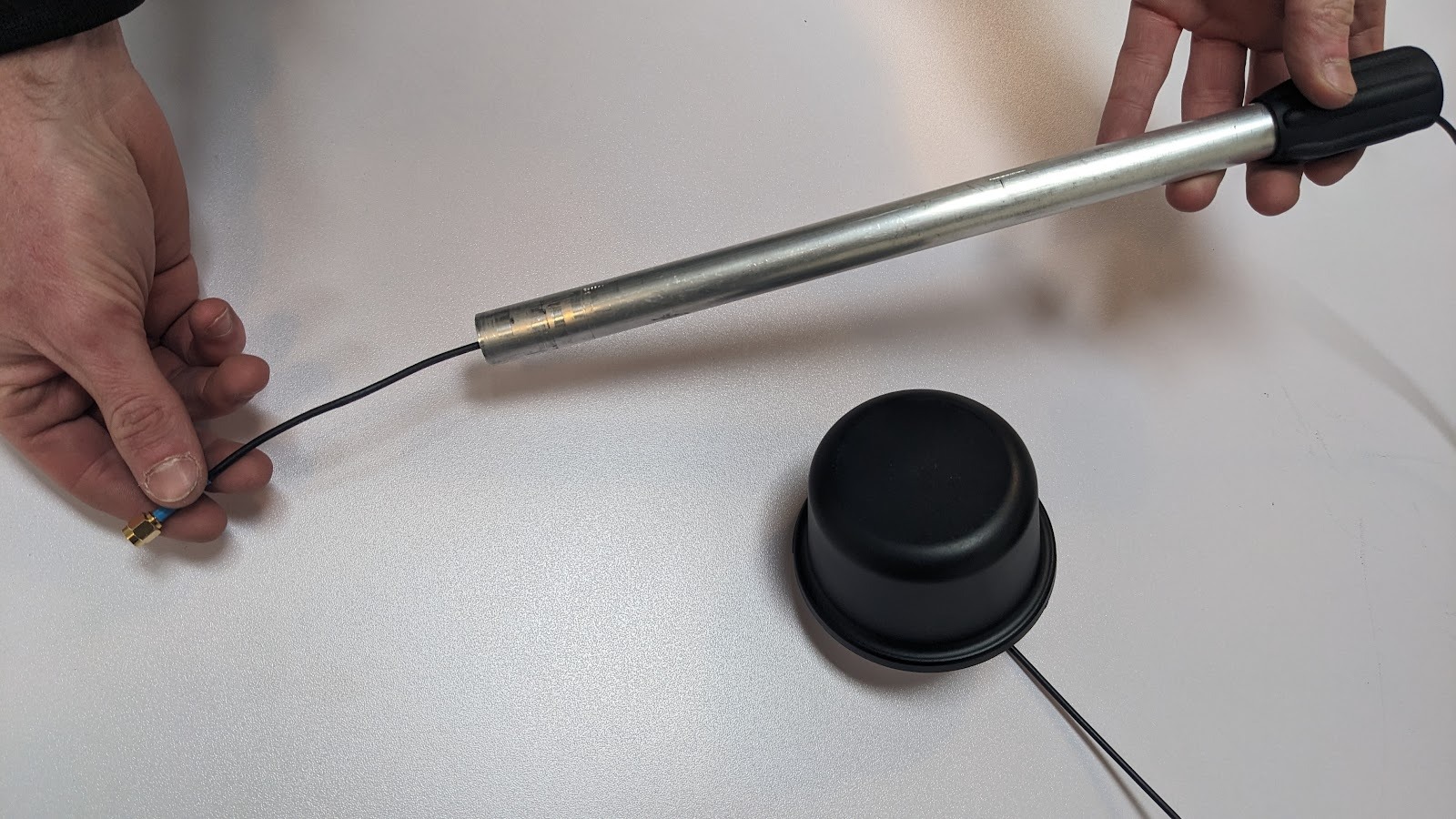
Step 3: Pull the GPS antenna cord through the GPS mounting rod.
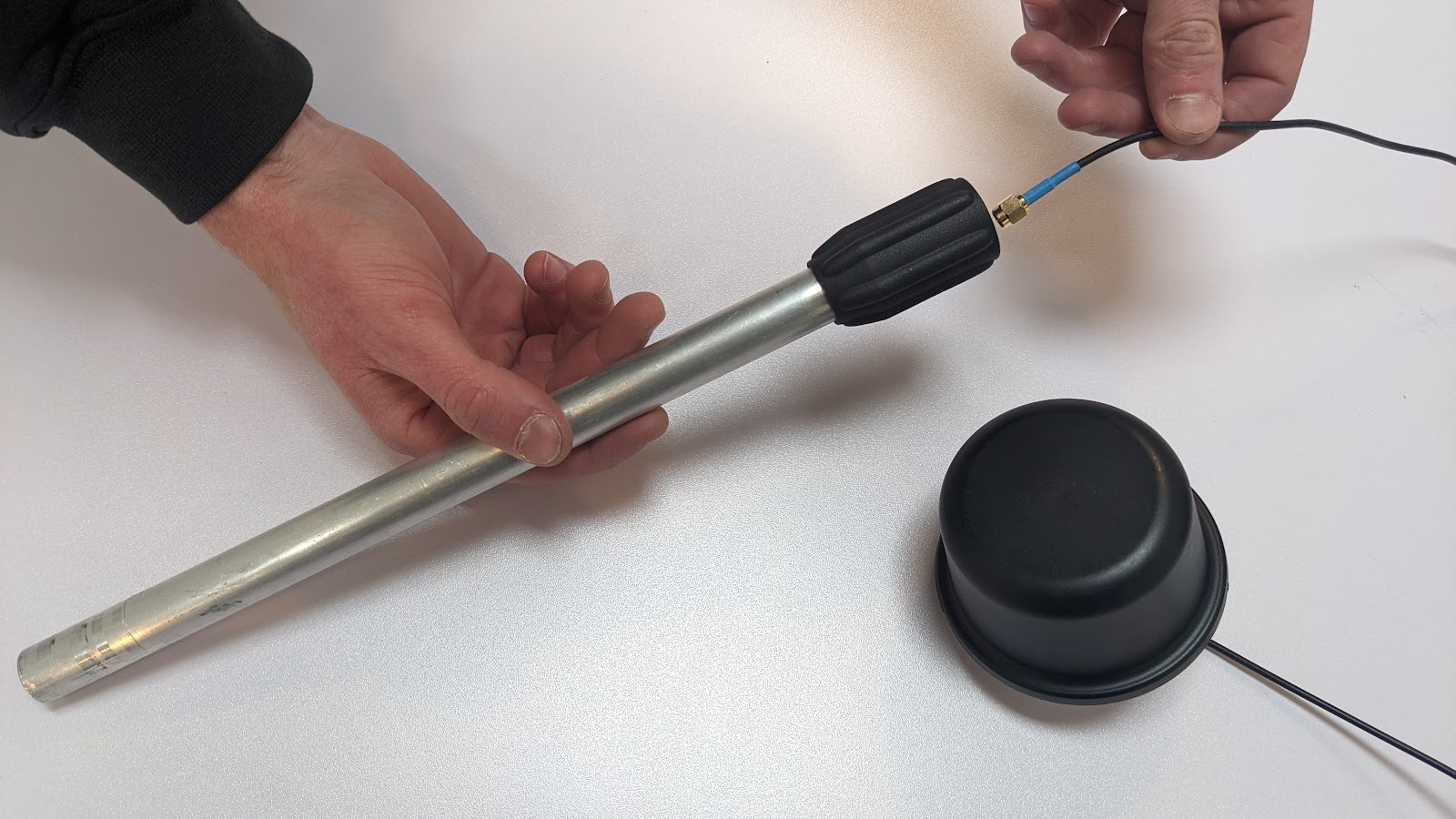
Step 4: Thread the GPS antenna unit onto the GPS adapter. (Take care to ensure that the cord can rotate freely and is not snagging on threads.)
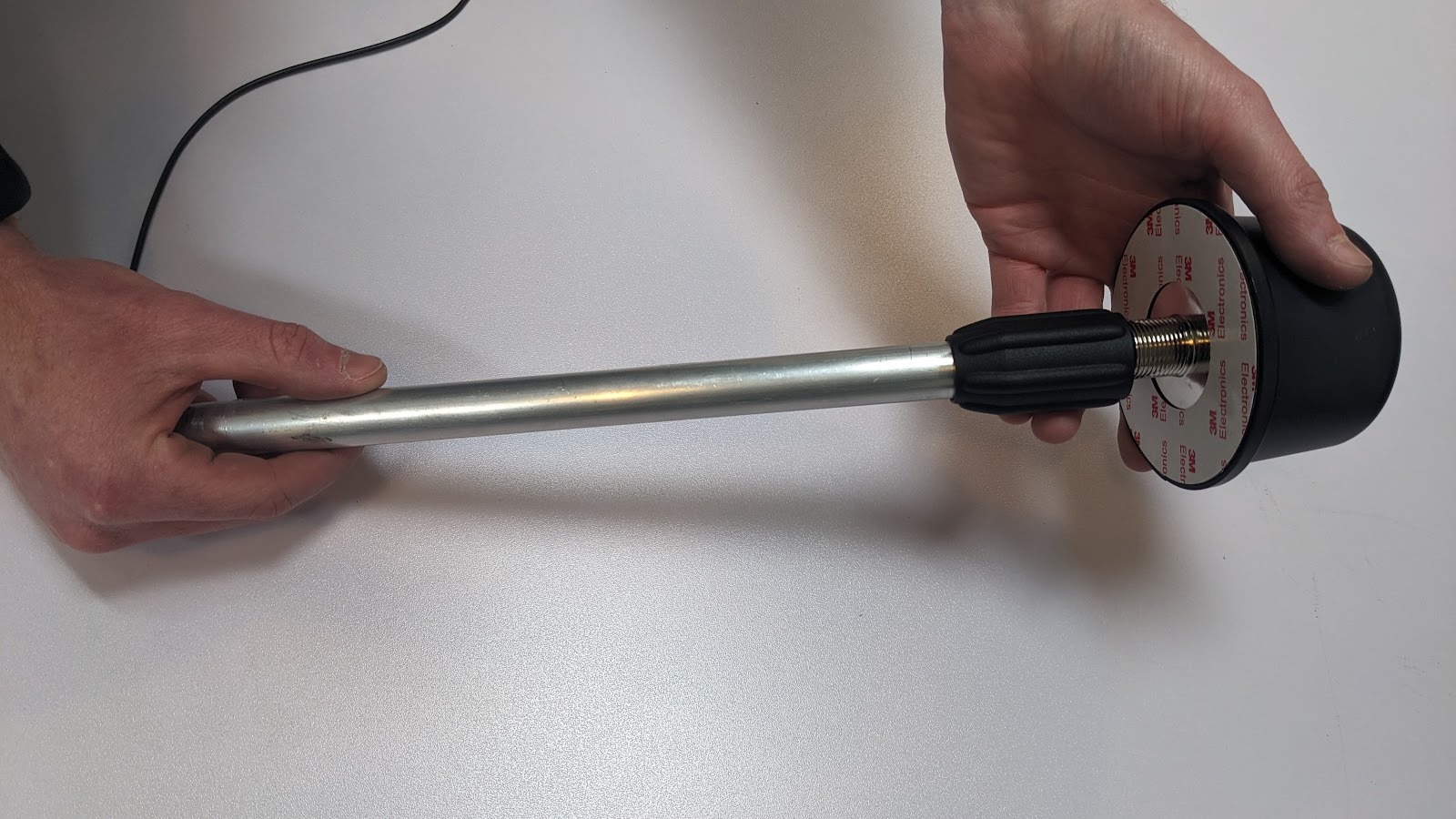
Step 5: Feed the GPS antenna connector into the GPS shaft collar on Flash.
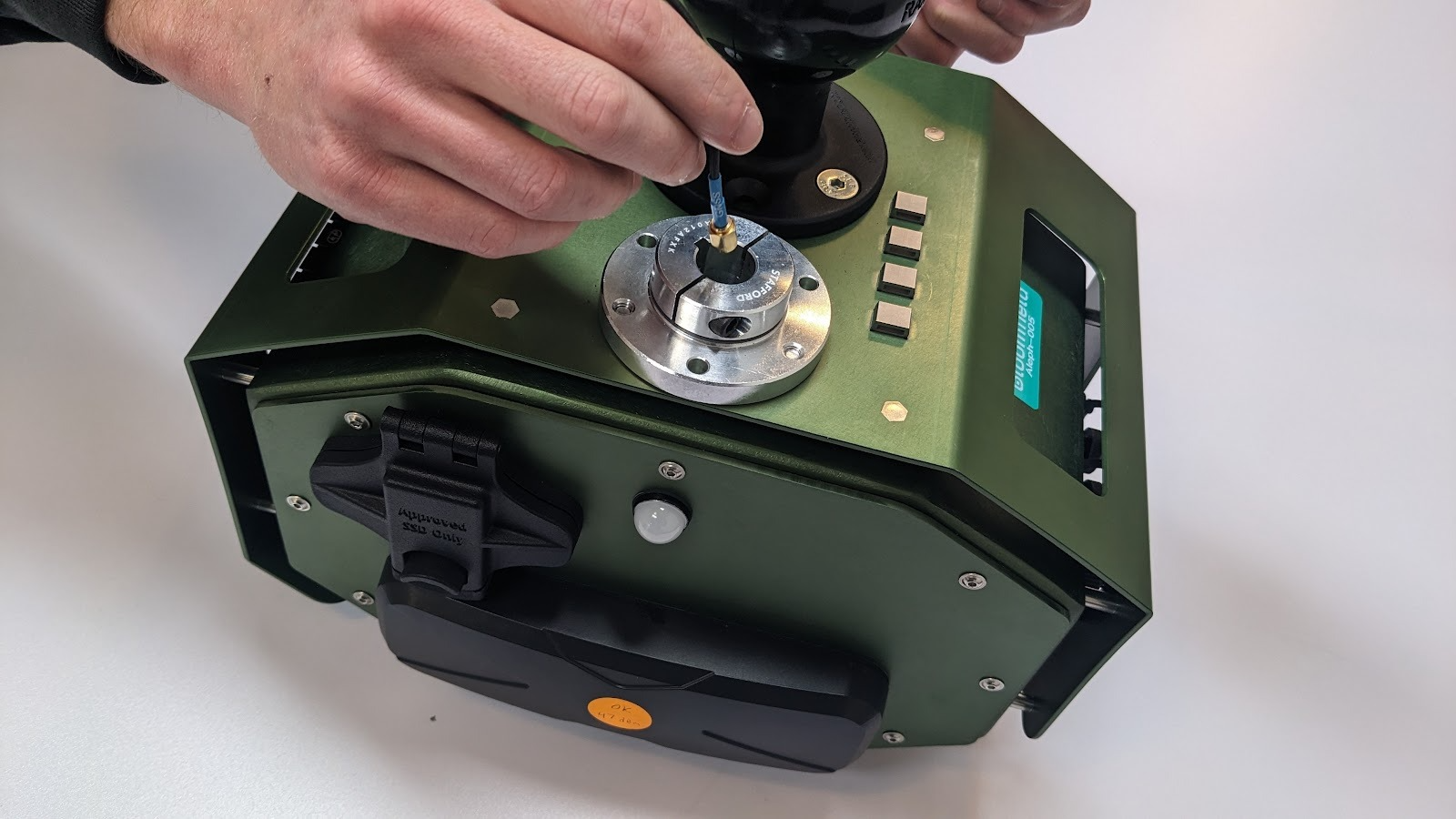
Step 6: Catch cord and pull out from under the GPS shaft collar.
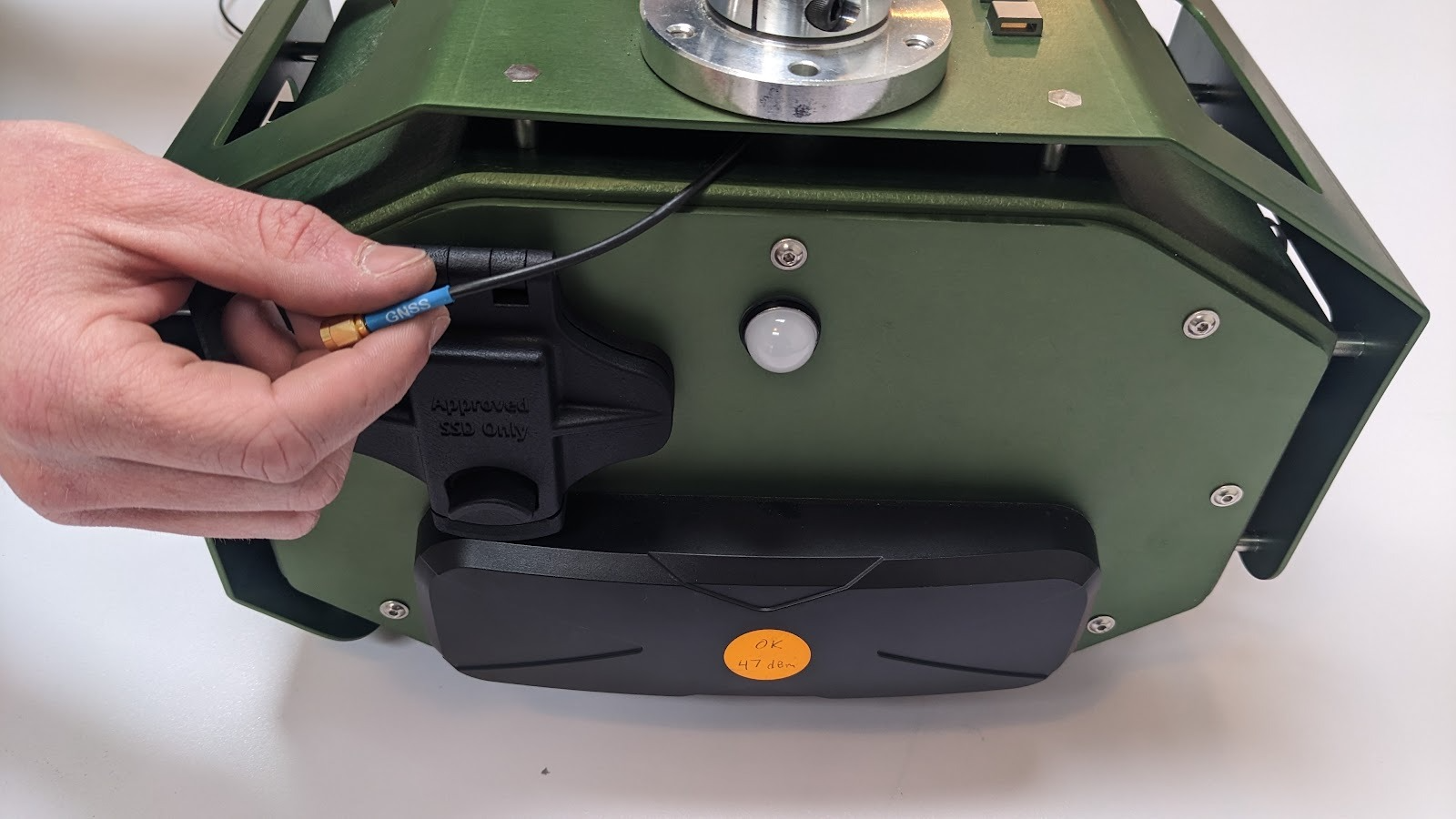
Step 7: Insert GPS antenna mount into the GPS shaft collar.
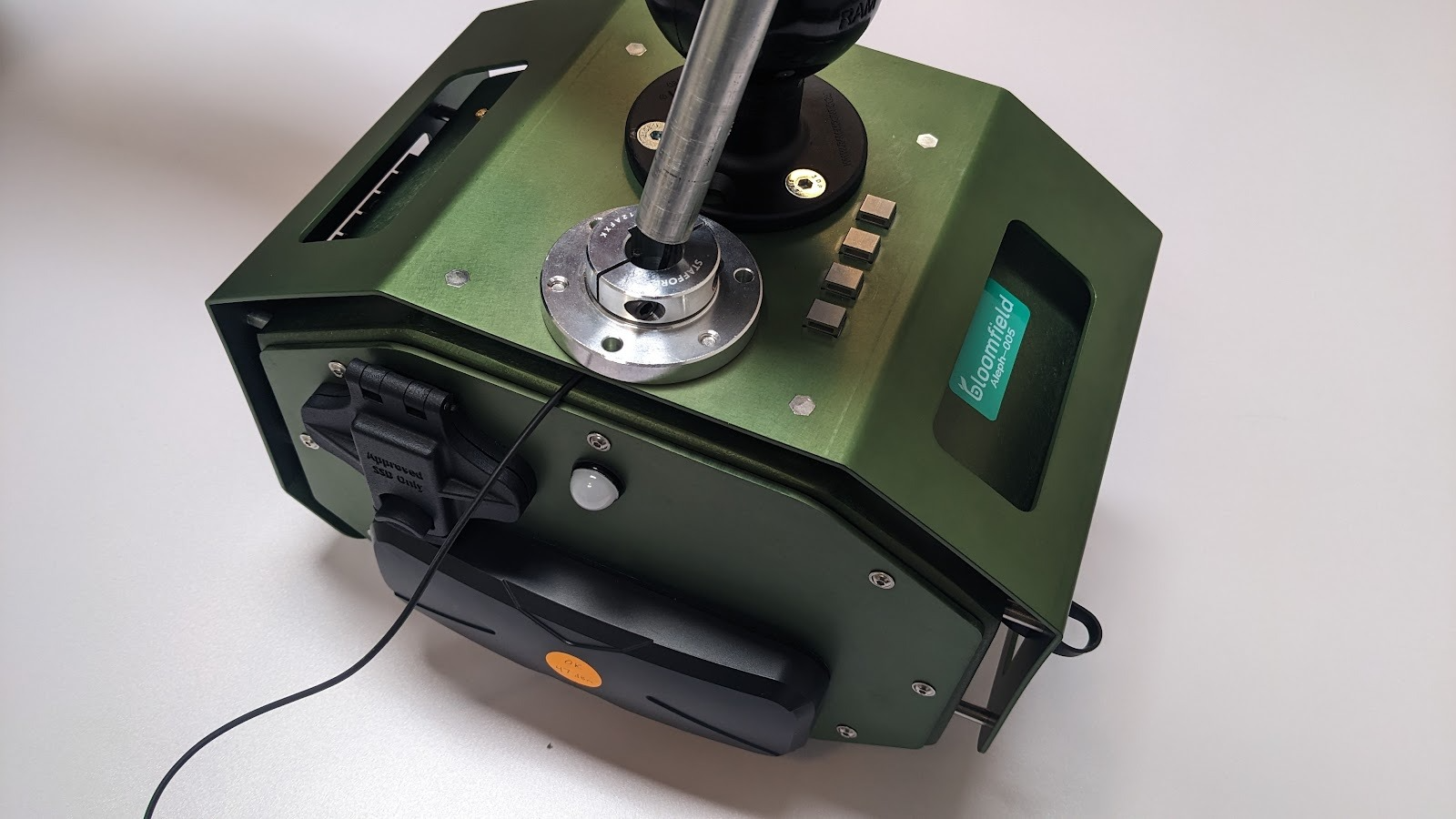
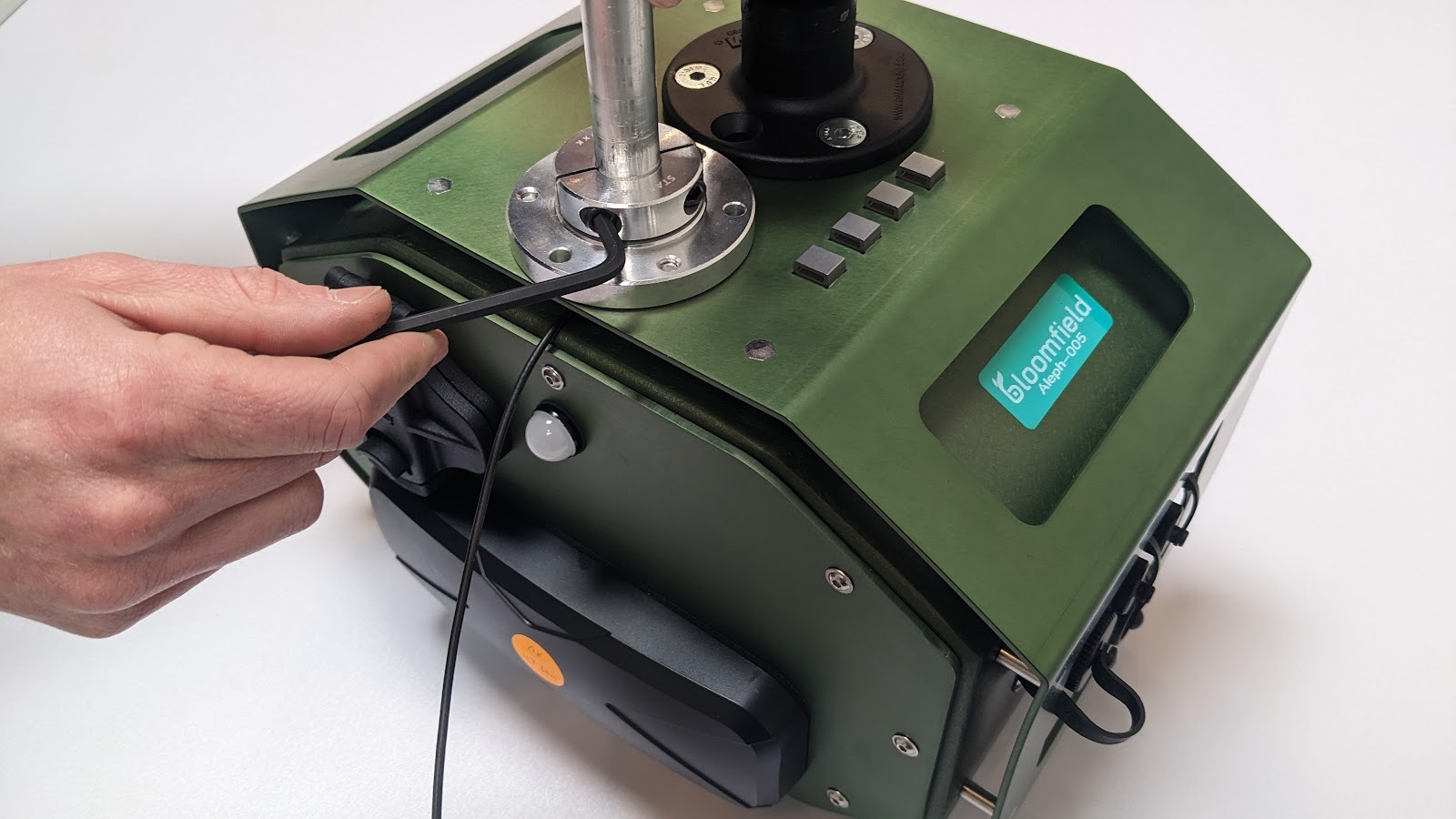
Step 8: Tighten both bolts in the GPS shaft collar using 3/16” hex wrench until snug. Do not overtighten.
Step 9: Wrap and secure any excess cable.
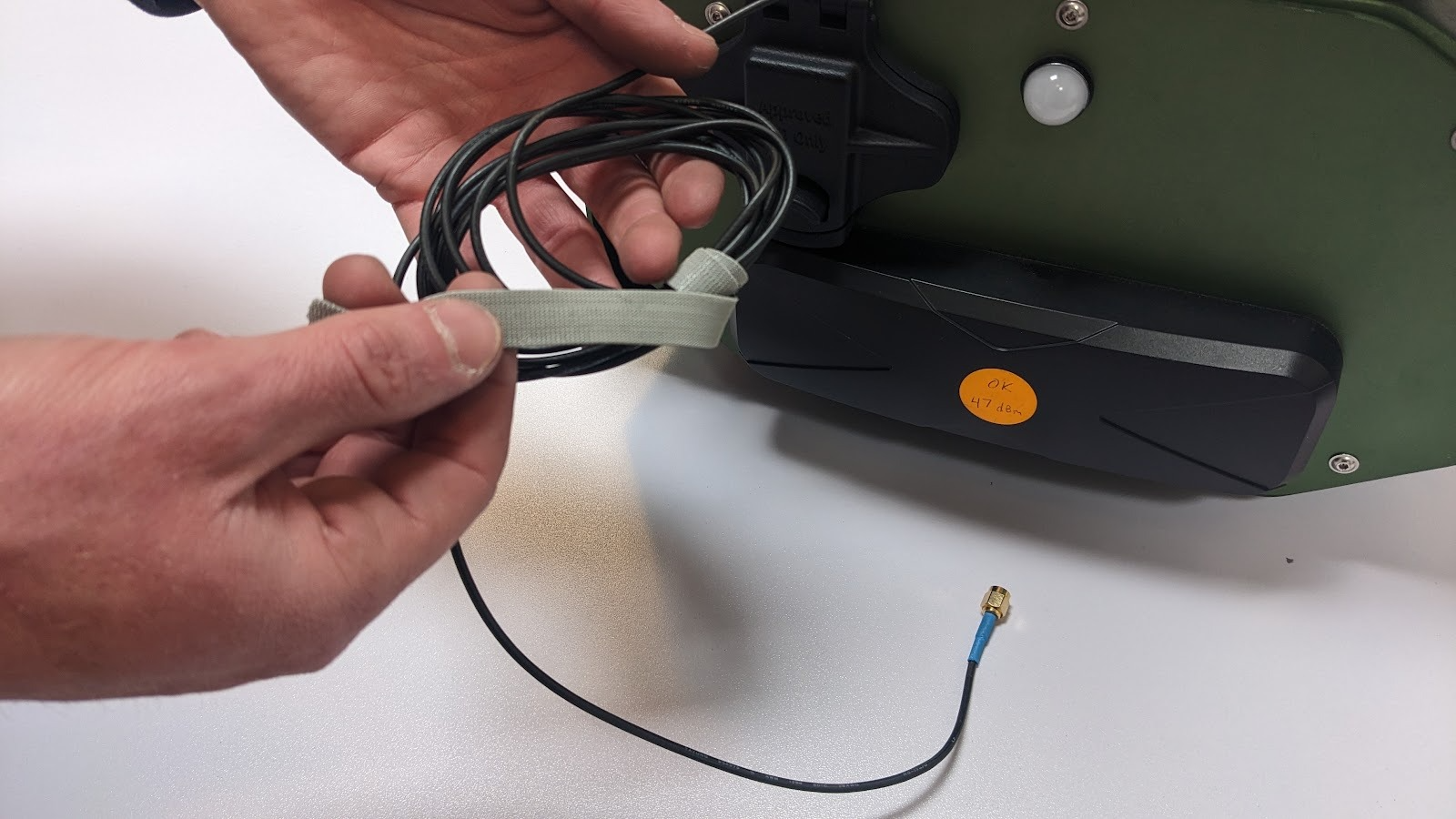
Step 10: Tuck excess cord under sunshield and finger tighten GPS connector into coaxial port. (Brass fitting: Do not overtighten, do not use a wrench.)
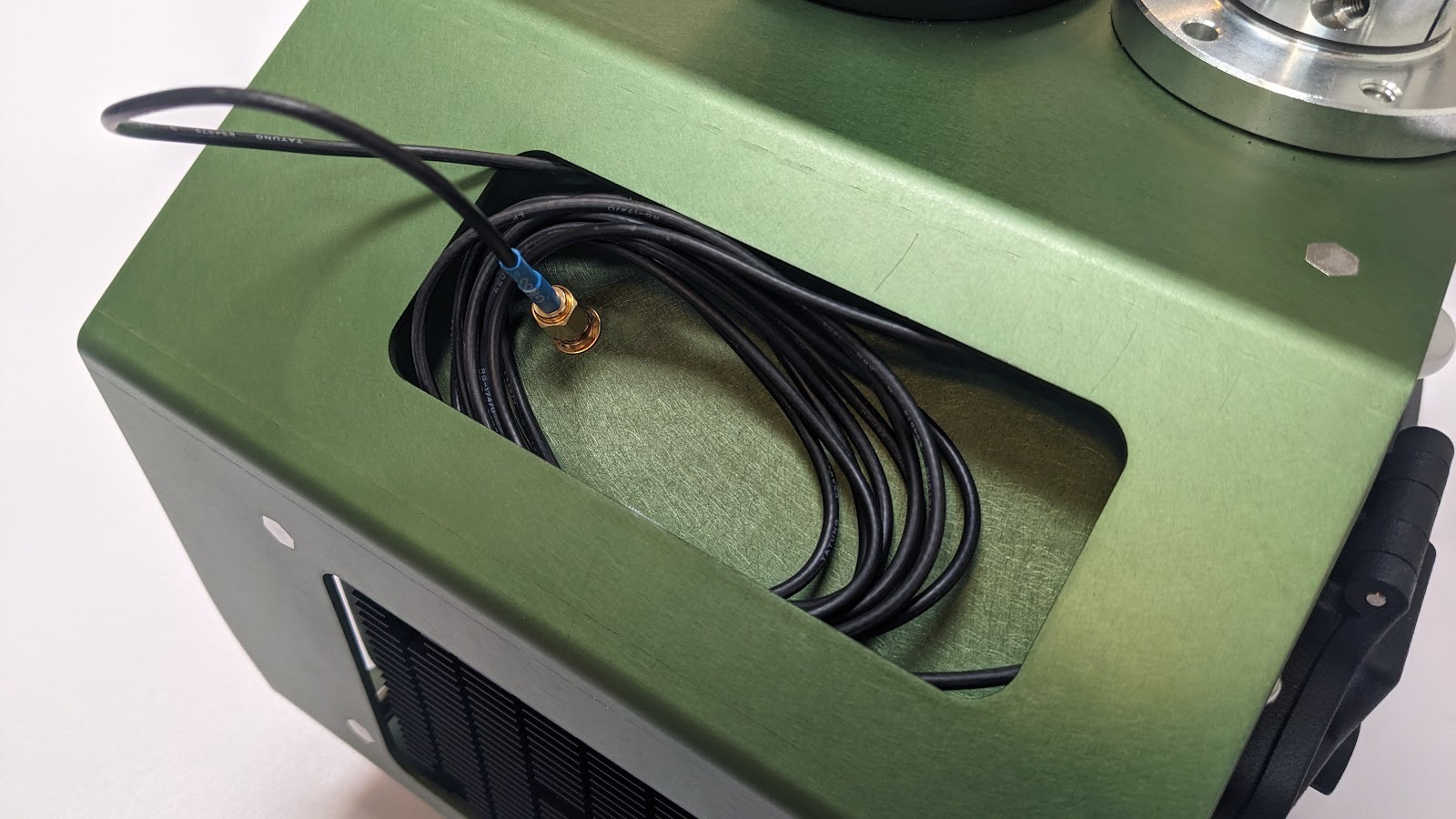
Step 11: To install SSD card: Open SSD panel on the back of Flash. Insert card with Samsung logo facing up and connectors facing down. Close panel.
HARDWARE APPENDIX - INSTALLING VEHICLE MOUNTS/WIRING
Bloomfield’s Flash system is designed to flexibly mount to nearly any agricultural vehicle through the use of an articulated ball-and-arm socket system from RAM Mounts. A number of mounts have been designed by Bloomfield and custom mounts are available. Information about common ATV mounts are below, and custom mounts for tractors are available. Contact for more information.
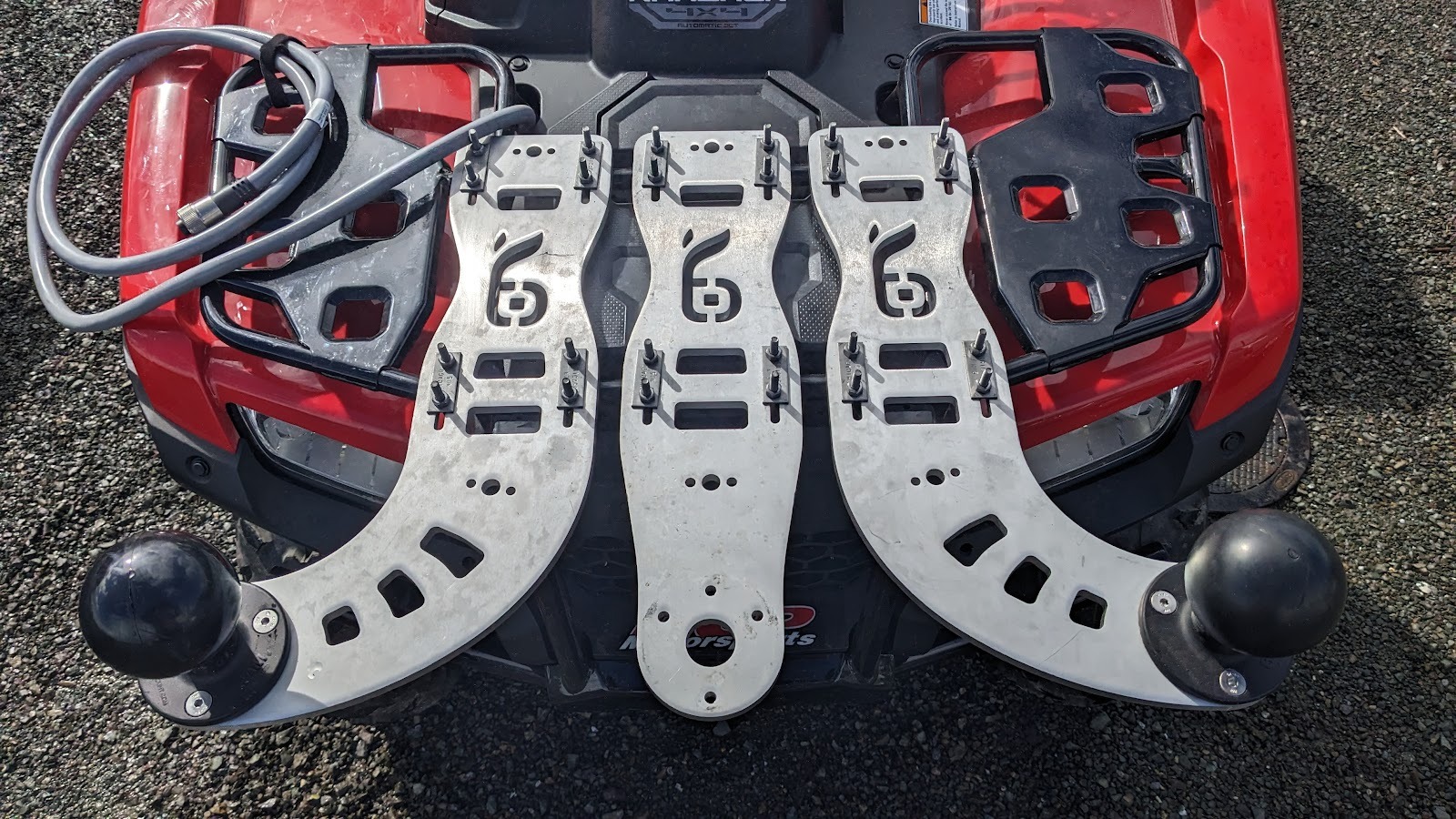
Three possible mounting options on a Honda Rancher ATV, with the left and right being typical. A center mount may be desired with tight row spacing.
The Flash camera mounts are typically mounted to the front rack of ATVs using a minimum of 4 U-Bolts to minimize deflection during operation. In cases where the rack of the vehicle is not directly connected to the vehicle’s chassis an additional support strap may be required to further stabilize the Flash system.
The RAM ball is attached to the mounting plate using M8 x 1.25mm thread, 18mm long flathead screws. Although there are 4 threaded holes for these screws, typically only the three holes spaced 120 degrees apart are used.
Flash is typically wired directly to the vehicle battery terminals. Technicians will assist with this at an initial install. Please contact us for any questions.
Was this article helpful?
That’s Great!
Thank you for your feedback
Sorry! We couldn't be helpful
Thank you for your feedback
Feedback sent
We appreciate your effort and will try to fix the article