Introduction to Bloomfield Accounts
Creating an account will allow access to the Bloomfield data portal—Dashboard—and control which users have access to data results.
How to create a Bloomfield customer account (and add users)
To create an account (or add a new user to an existing account) please submit the following to help@bloomfield.ai or your customer service representative:
- Customer/Organization Name
- User Full Name
- User Email Address
Once the user has been added they will receive an invitation email with additional directions to sign-up for dashboard.bloomfield.ai. These directions are shown below in detail, but please note they are only valid after the user receives an invitation email.
For instructions on adding on digitizing your ranches and blocks—an important step before uploading any scans via Smasher or Diaspora—please see Customer Guidelines for Ranch and Block Submission.
Steps to accept a Dashboard user account:
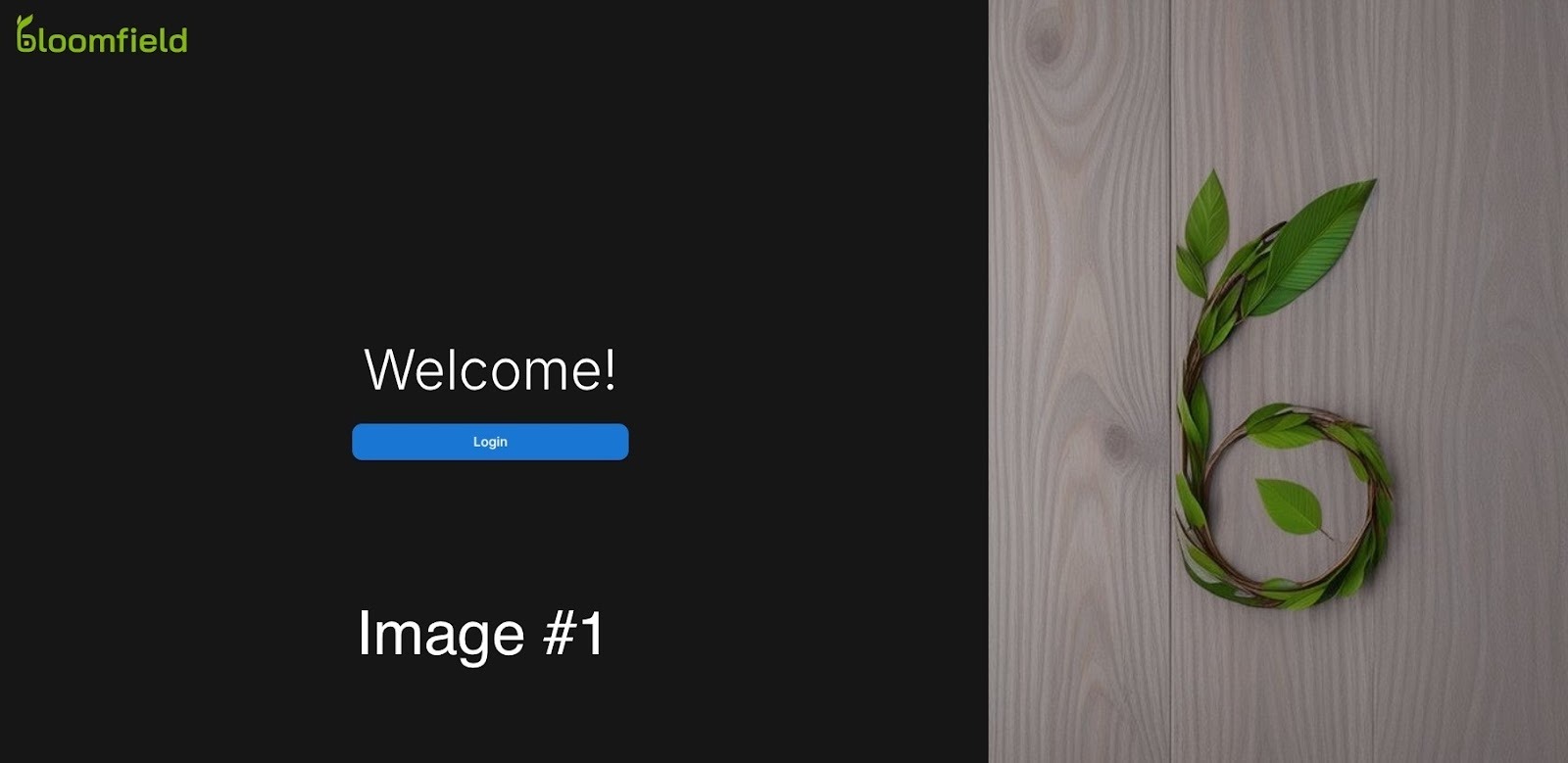
- Go to our Dashboard website at dashboard.bloomfield.ai. [Image #1]
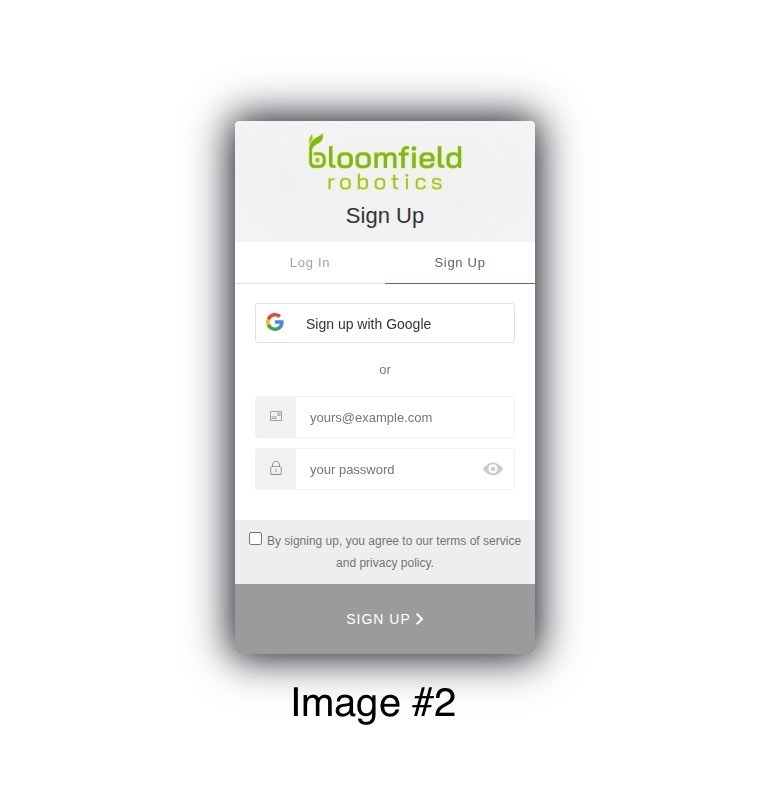
- Initiate Log In: Select the "Log In" option.
- Start Sign Up: Select "Sign Up". [Image #2]
- Important Note: Do not use the "Sign up with Google" link.
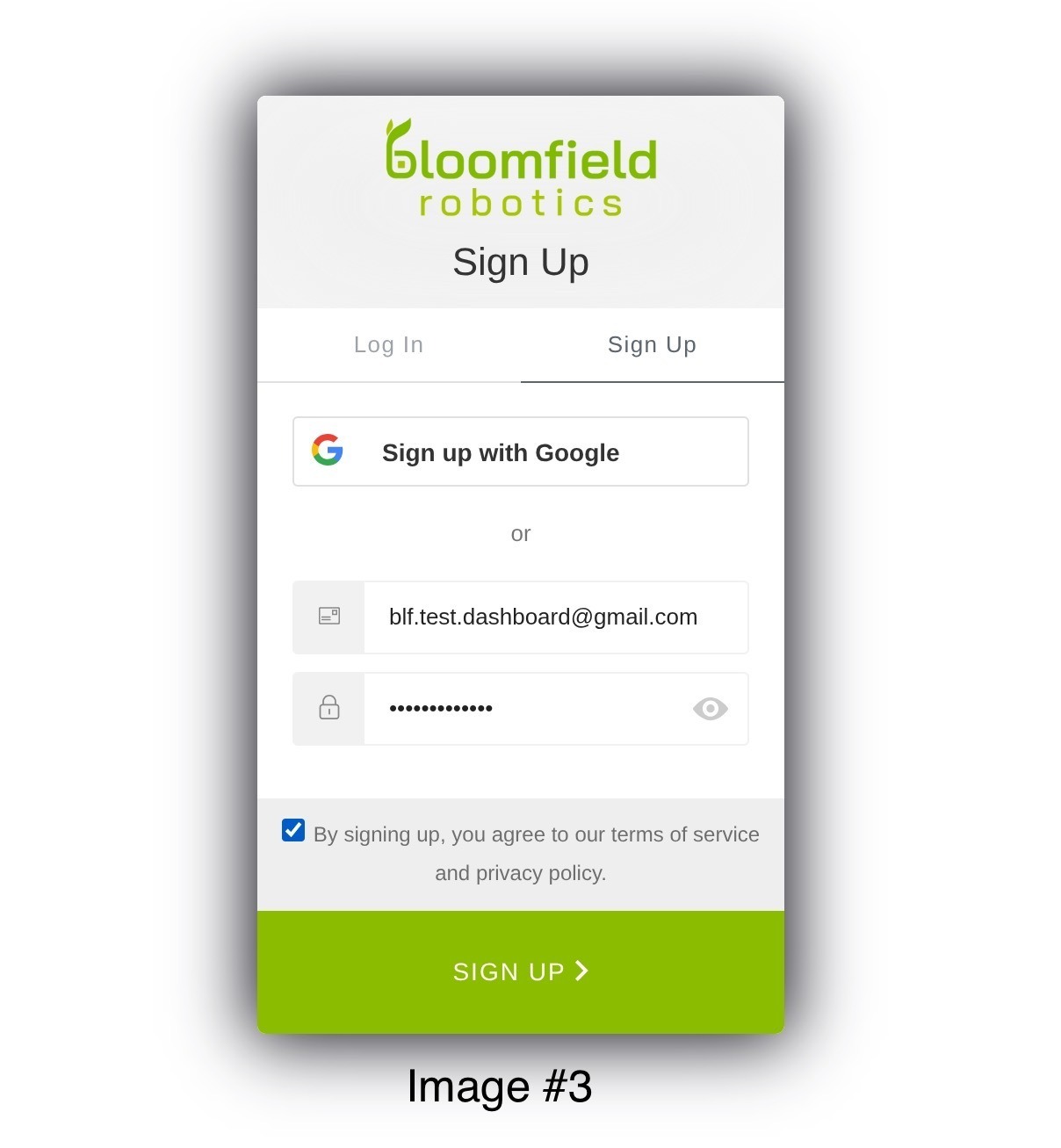
- Enter Credentials: Type in the email address (that received the invitation email) and choose a password.[Image #3]
- Accept Terms: Check the box to accept the terms of service and privacy policy agreement.
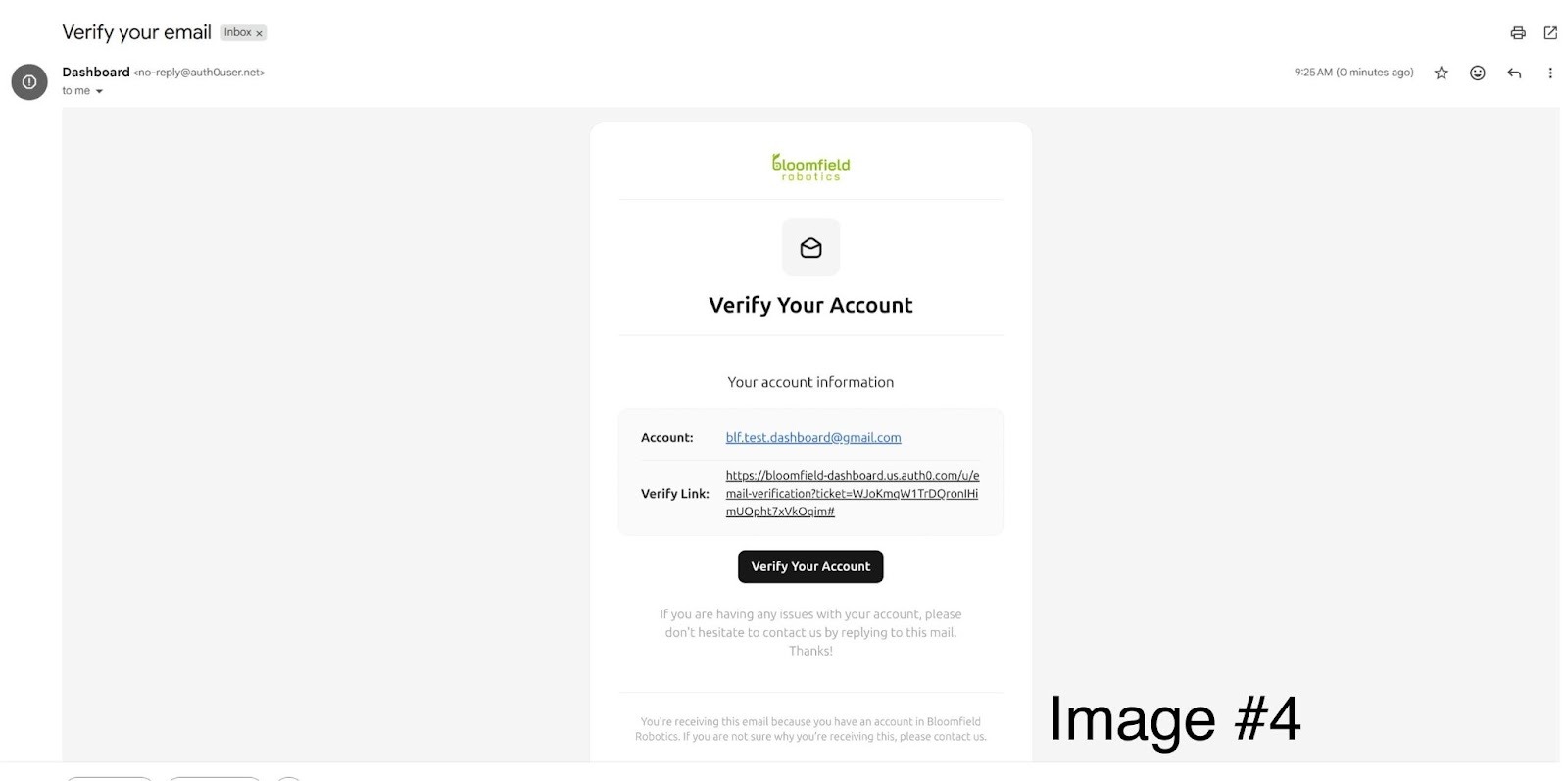
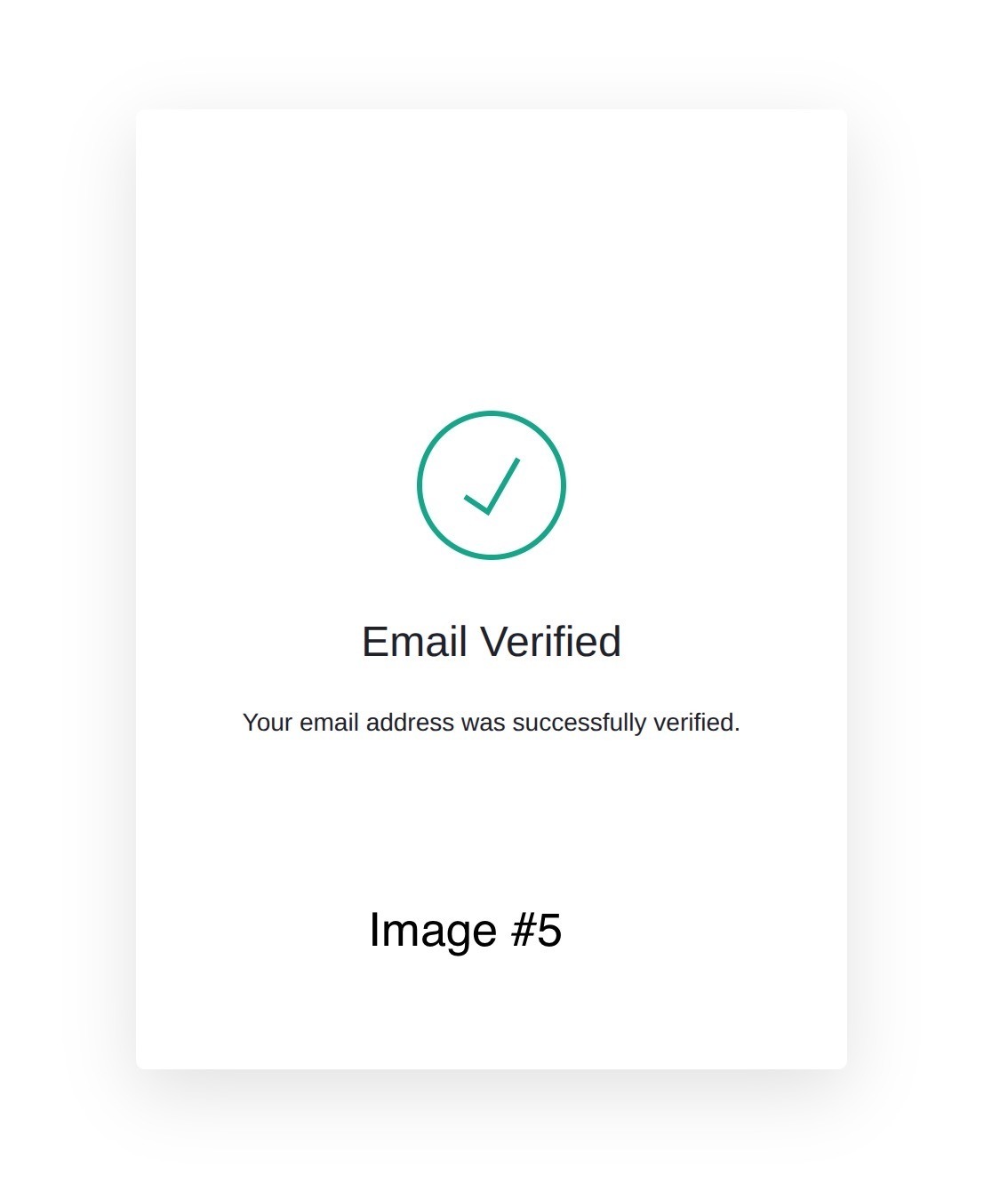
- Confirmation email: You will receive an email from Auth0 [Image #4]. It may be in spam. Once accepted, you will have access to the Bloomfield Dashboard [Image #5].
Was this article helpful?
That’s Great!
Thank you for your feedback
Sorry! We couldn't be helpful
Thank you for your feedback
Feedback sent
We appreciate your effort and will try to fix the article