Follow these steps based on the symptoms you observe.
Scenario 1: The screen doesn't turn on (completely clack)
If the screen is dark, proceed through these power checks:
Check Main Power Supply:
Verify the main power cord is securely plugged into the equipment and the Tripp-Lite PDU. [Refer to Image #4]
Check Screen Power:
Verify the screen's power cable is firmly connected to both the screen and the Tripp-Lite PDU. [Refer to Image #2]
Check NUC Power:
Follow the NUC's power cable from the PDU [Refer to Image #5] to the power brick (mounted on the MagicDock).
Ensure the cable going from the power brick to the NUC is fully seated/plugged in.
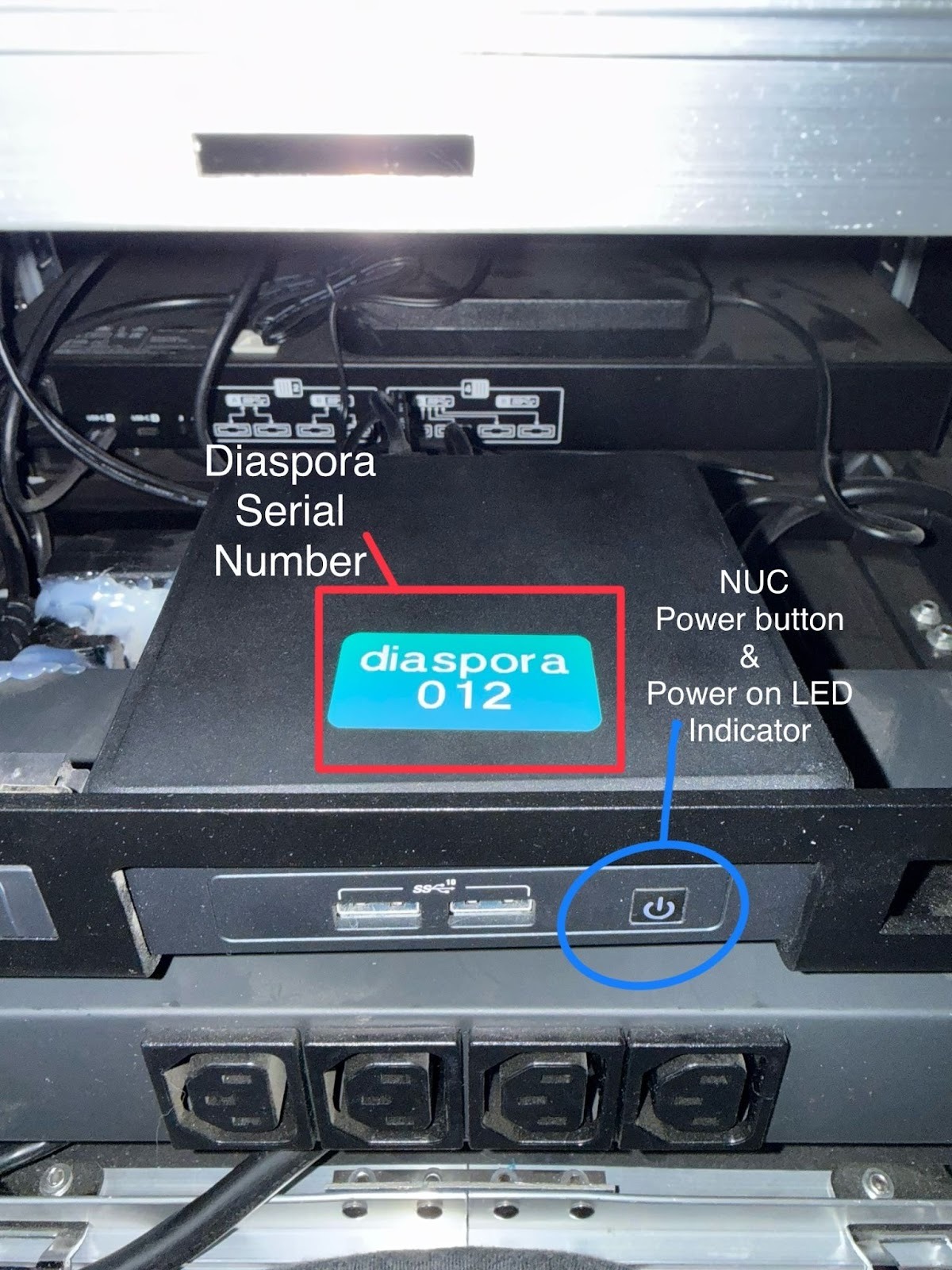
Check the NUC's LED power light indicator. If it is off, press the power button on the NUC to turn it on. [Refer to Image #6]
Scenario 2: Screen backlight is on, but no status or images are displayed
If the screen is lit but shows no input (e.g., a "No Signal" message or just a blank glow):
Check Screen Connection (HDMI):
Verify the HDMI cable is securely plugged into both the back of the screen and the NUC. [Refer to Image #2]
Verify NUC Power/Status:
Ensure the NUC power light LED is ON. If not, refer back to the NUC power check in Scenario 1. [Refer to Image #1 & 5]
Note: If the NUC appears to be on, try rebooting it by pressing and holding the power button until it shuts off, then pressing it again to power on.
Scenario 3: Diaspora appears on, but cards are not uploading (MagicDock light is OFF)
If the NUC and screen are functional, but the card reader isn't working:
Check MagicDock Power Supply:
Verify the MagicDock's power cable is securely plugged into the MagicDock and the Tripp-Lite PDU. [Refer to Image #5]
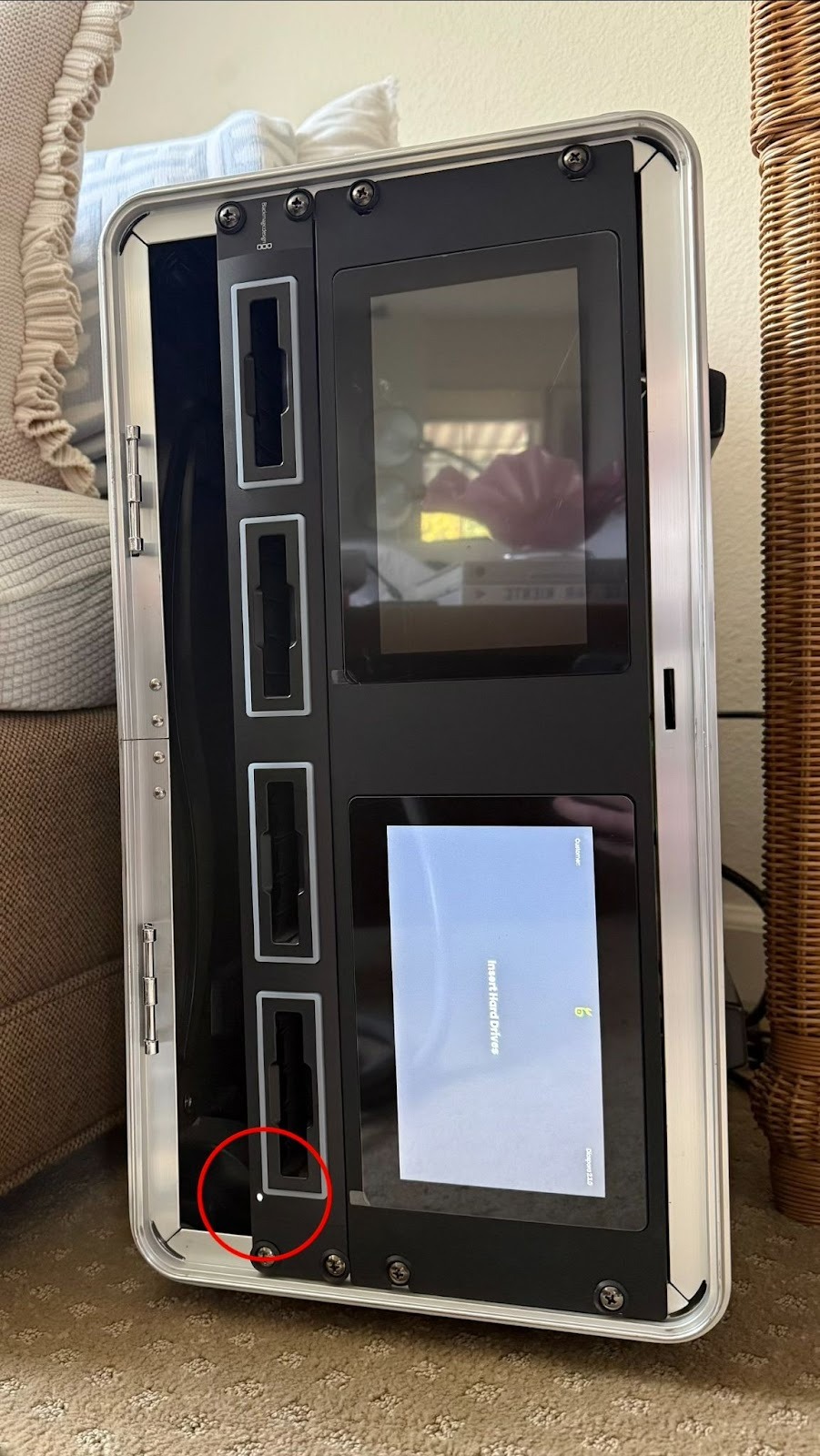
Look for the LED indicator light on the front of the MagicDock, it is a small white light in the lower right corner [Refer to Image #7]
MagicDock Card Reader Check:
Check MagicDock to see which SSD slot the switch is selected to, it should be on “4” indicating the SSD reader is reading all 4 slots. [Refer to image #3]
Scenario 4: Diaspora appears on, but cards are not uploading (MagicDock light is ON)
If all components have power, but there is no data transfer:
Check Network Connection (Ethernet):
Verify the Ethernet cable is securely plugged into the NUC.
Check the Ethernet port on the NUC, the indicator lights should be illuminated. [Refer to Image #1]
Check Ethernet Network Port:
Ensure the other end of the Ethernet cable is plugged into a known active and functional wall Ethernet port or network switch port.
Further Assistance
If you have followed all the steps above and the equipment is still not functioning correctly, please contact Bloomfield Support for further assistance.
Image #1
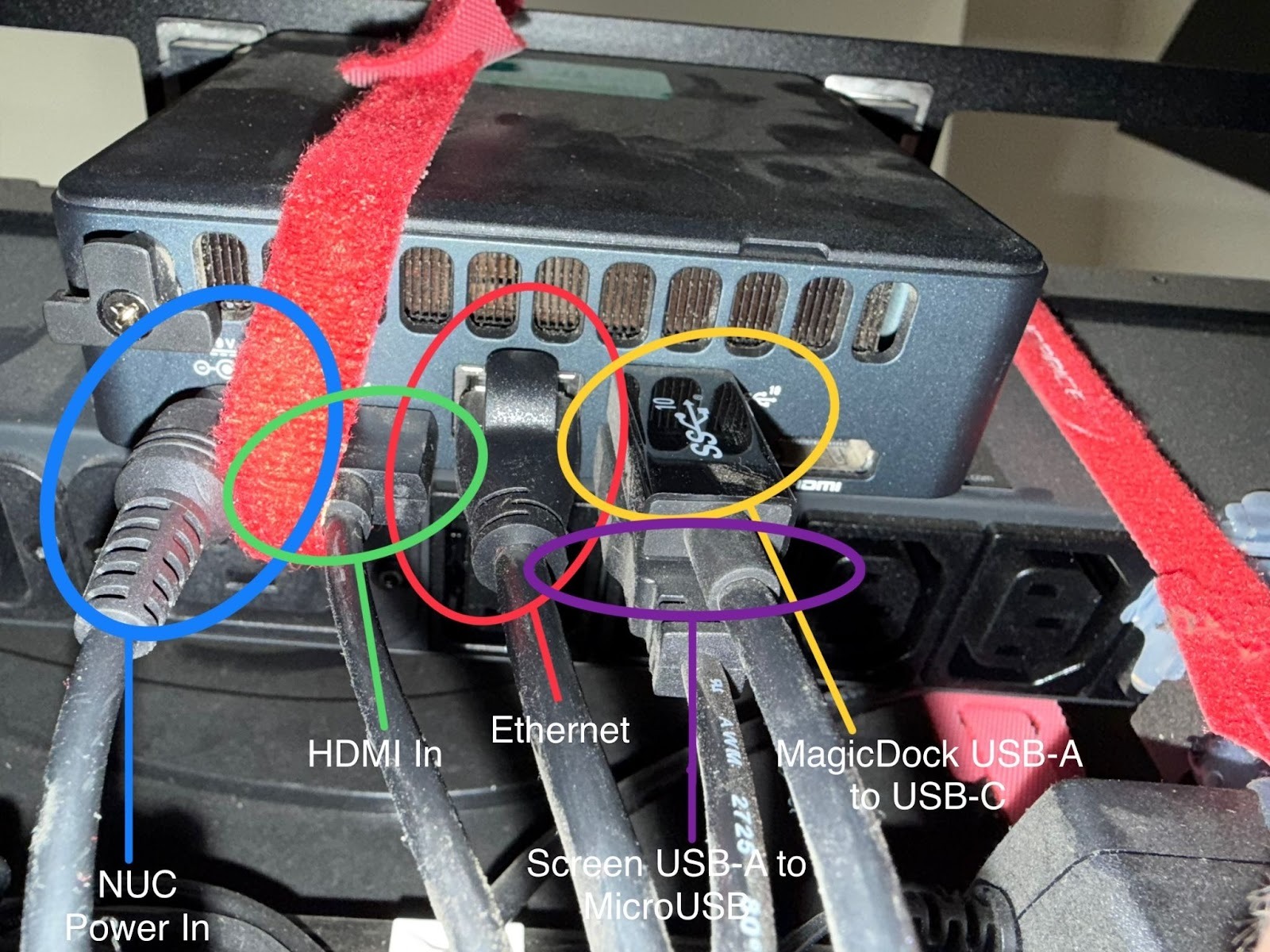
Image #2
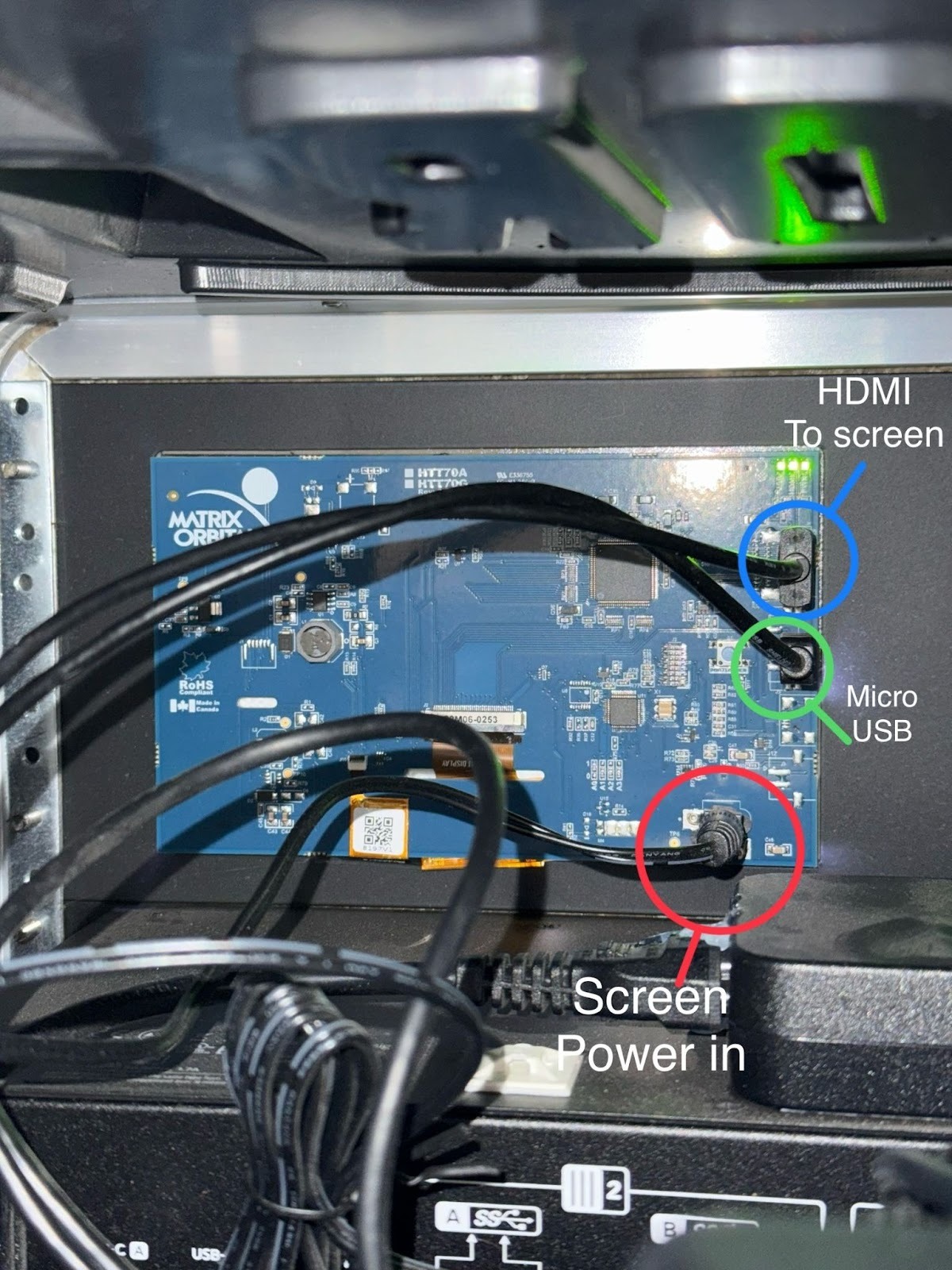
Image #3
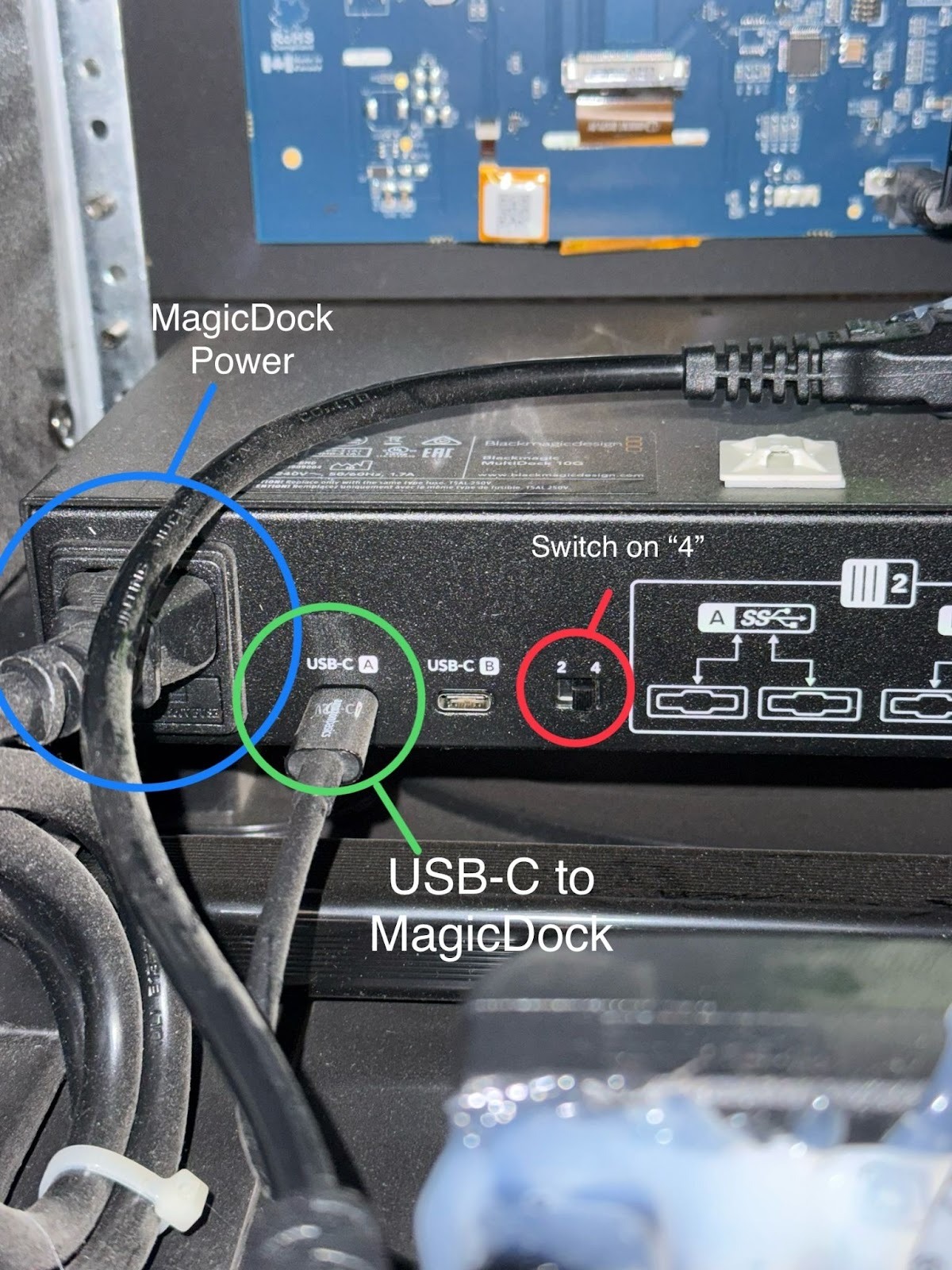
Image #4
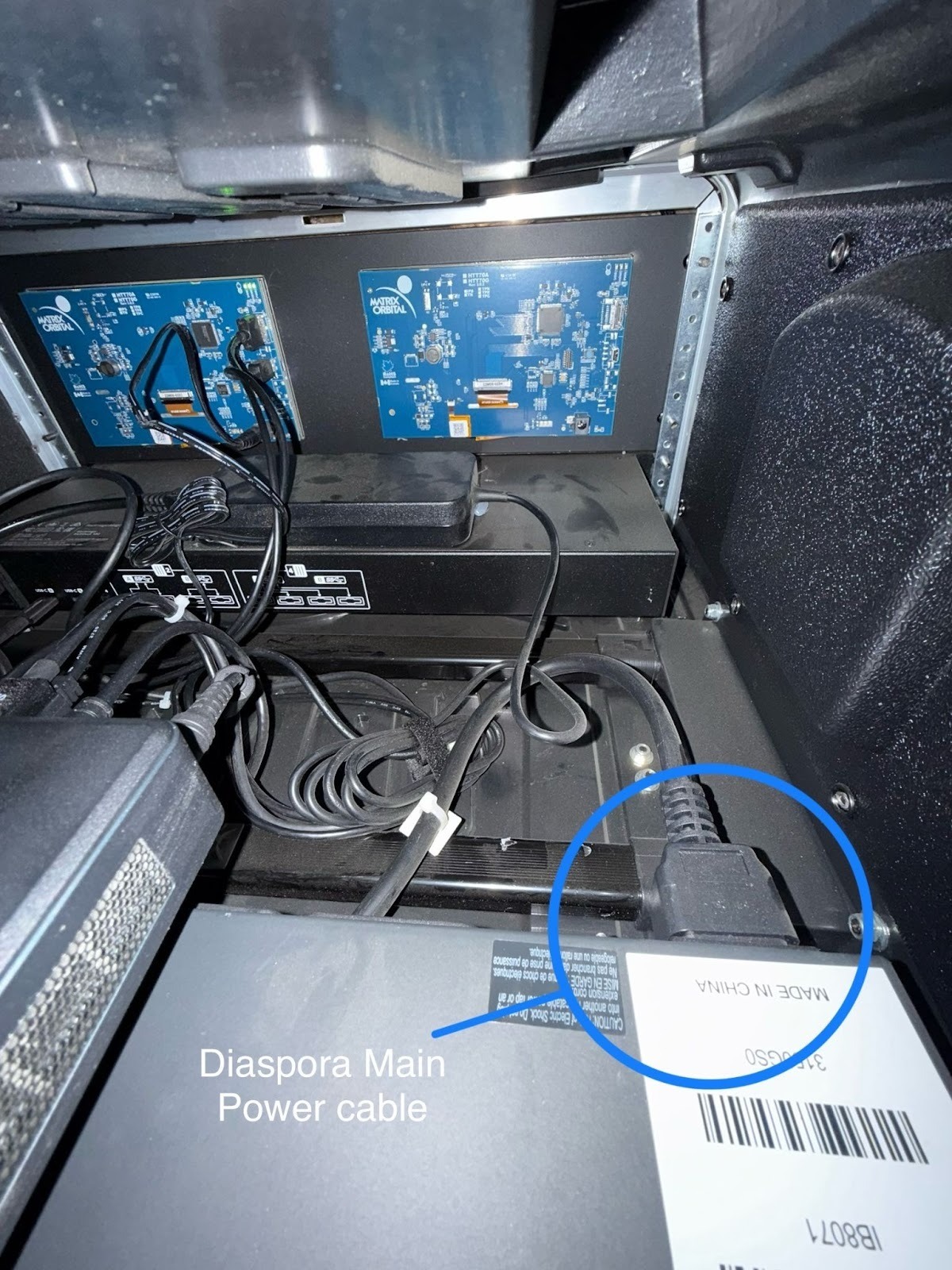
Image #5
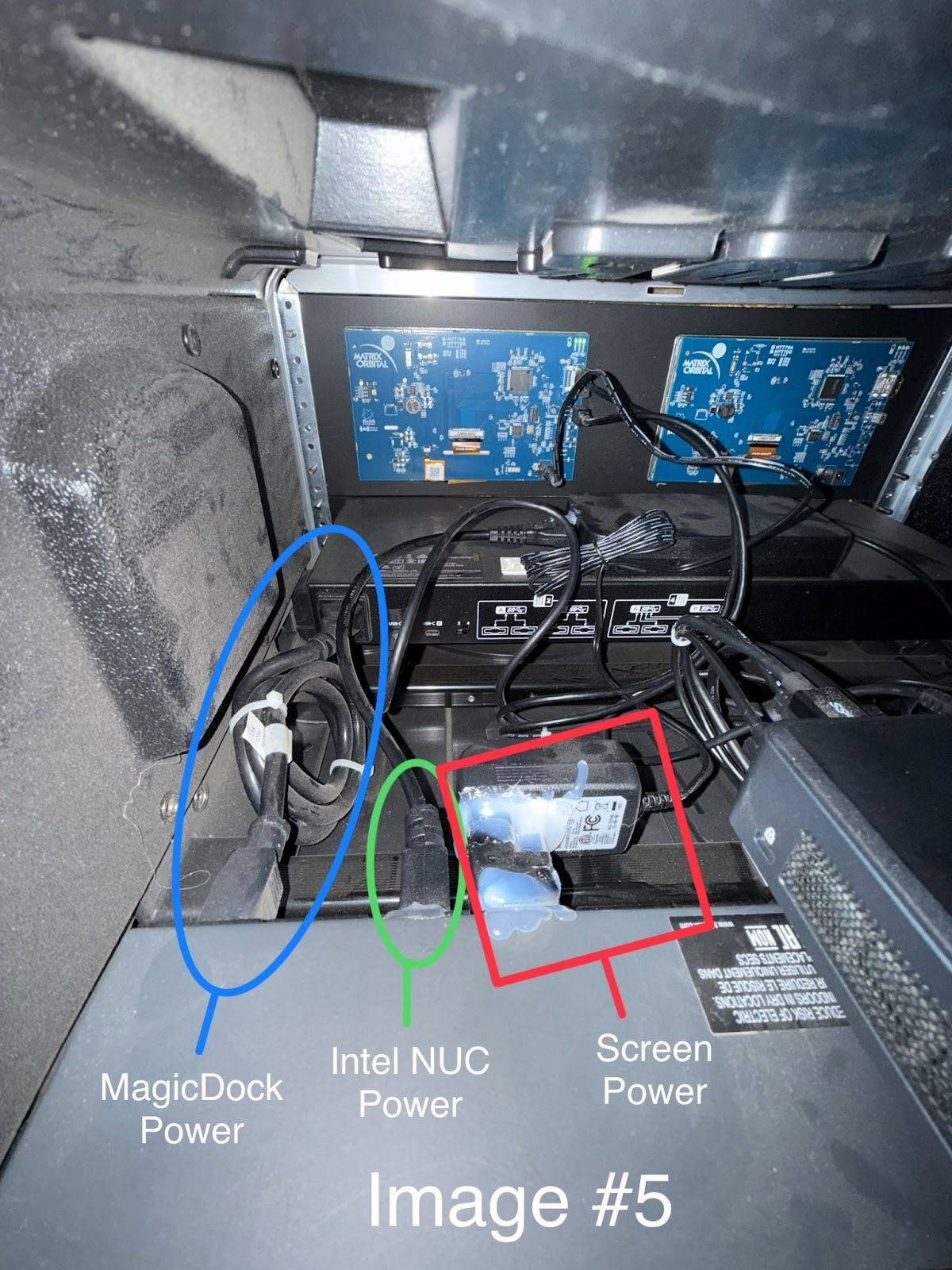
Image #6
Was this article helpful?
That’s Great!
Thank you for your feedback
Sorry! We couldn't be helpful
Thank you for your feedback
Feedback sent
We appreciate your effort and will try to fix the article